Samsung Galaxy Tab S9 FE 5G - Insert / Remove SIM Card
Here's how to properly insert or remove a SIM card for your Galaxy Tab S9 FE 5G.
Instructions on inserting / removing your SIM can help with activation issues / errors, browser connection problems and a blank or frozen screen.
- Don't attempt to insert / remove the SIM card while the device is powered on. Doing so may harm the SIM card and/or the device.
- Don't modify or alter your SIM card.
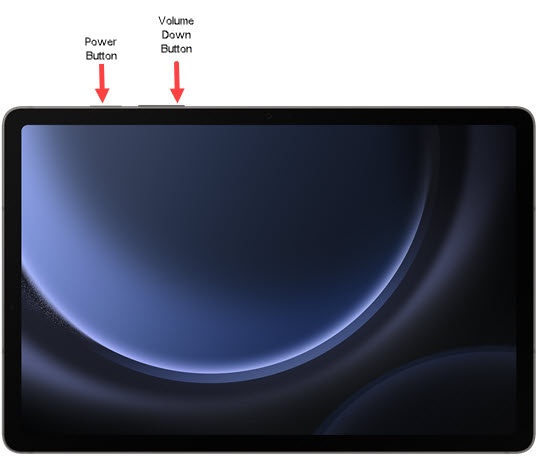
- Ensure the device is powered off.To power off the device, press and hold thePower / Side buttonandVolume down buttonuntil the 'Power off' prompt appears, release the buttons then tapPower off.
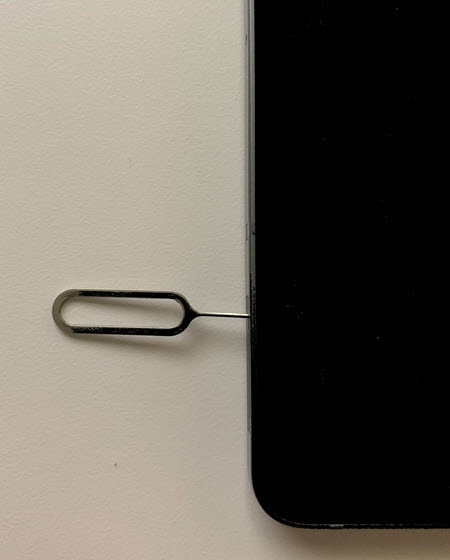
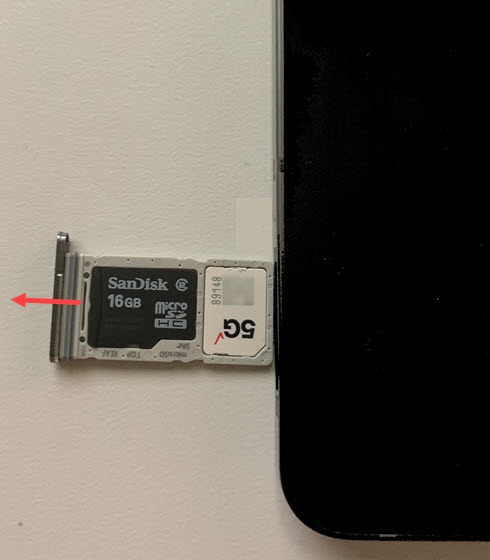
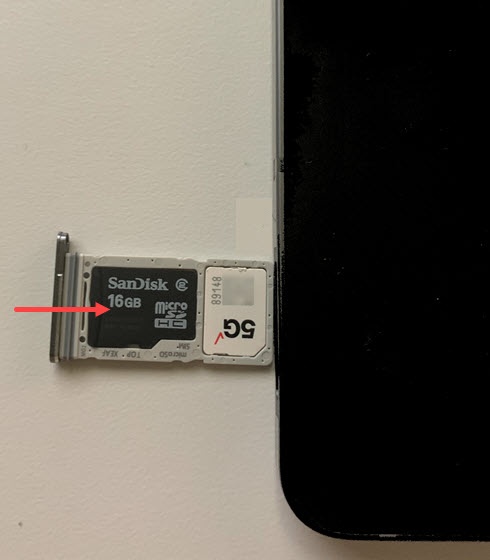
- Remove the card tray (lower-left edge with the device in portrait orientation and display facing up).Use the SIM removal tool (or a paperclip) to unlock the tray by inserting it into the provided slot then remove the tray.
- Do one of the following:To avoid damaging your SIM card, don't touch the gold contacts.
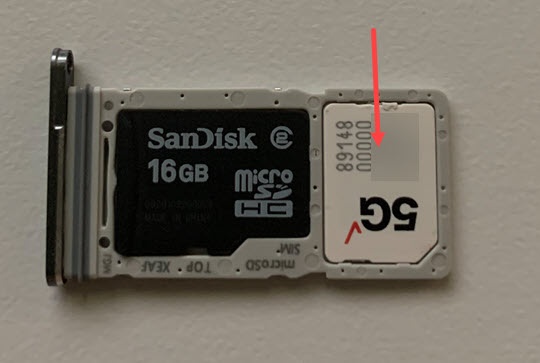
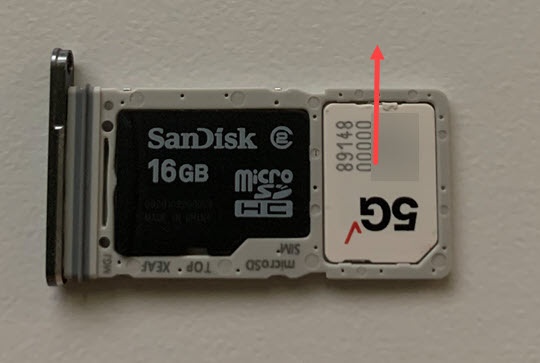
- Insert the SIM cardThe slot is keyed so there is only one way to insert the SIM card; ensure the gold contacts are facing down and the notch is aligned with the SIM / SD tray.
- Remove the SIM cardFrom the bottom of the card, carefully lift to remove. To assist, use the opening on the opposite side of the tray to dislodge.
- Insert the card tray then press it back into its slot until it clicks, making sure it's secure.