Samsung Galaxy Tab S9 FE 5G - Common Camera Settings
Here's info on common camera settings (e.g., flash, timer, front / rear camera, etc.) for your Galaxy Tab S9 FE 5G.
For additional support, refer to the Camera and Gallery section of the User manual.
Positioning of icons varies depending on the orientation of the tablet.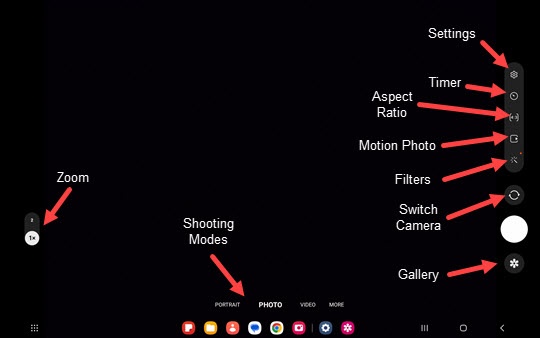
Settings
- From a Home screen, tapCamera
(lower-right).
If unavailable, swipe up or down from the center of the display then tapCamera. - Tap theSettings icon
.
- Tap any of the following options to turn on
or off
:
- Scene optimizer
- Shot suggestions
- Scan QR codes
- Watermark
- High efficiency pictures
- Save selfies as previewed
- High efficiency videos
- Video stabilization
- Auto HDR
- Grid lines
- Location tags
- Shutter sound
- TapSwipe Shutter button tothen select an option:
- Take burst shot
- Create GIF
- Tap theBack icon
(upper-left) to return to the previous screen.
- TapShooting methodsthen configure the following options as preferred:
- Press Volume keys to
- Take picture or record video
- Zoom in or out
- Control system volume
- Floating Shutter buttonTap the switch to turn on or off.
- Show palmTap the switch to turn on or off.
- Tap theBack iconto return to the previous screen.
- TapSettings to keepthen tap the switches to turn on or off:
- Camera mode
- Selfie angle
- Filters
- Tap theBack iconto return to the previous screen.
- TapStorage locationthen select the desired option (Internal storage, SD card).This option only appears if an SD card is inserted.
- Tap theBack iconto return to the Camera.
Self-timer
Used to select the length of the delay before the camera takes a photo automatically.
- From a Home screen, tapCameraIf unavailable, swipe up or down from the center of the display then tapCamera.
- Tap theSelf-timer icon
.
- Select an option:
- Off
- 2 seconds
- 5 seconds
- 10 seconds
Aspect Ratio
- From a Home screen, tapCameraIf unavailable, swipe up or down from the center of the display then tapCamera.
- Tap theAspect Ratio icon
.
- Select an option:
- 4:3
- 16:9
- 1:1
- Full
Motion Photo
- From a Home screen, tapCameraIf unavailable, swipe up or down from the center of the display then tapCamera.
- Tap theMotion photo icon
to capture a few seconds of action leading up to when the shutter button is released.
Motion photo is on when icon appears yellow.
Filters
Used to apply a beauty or filter effect.
- From a Home screen, tapCameraIf unavailable, swipe up or down from the center of the display then tapCamera.
- Tap theFilters icon
.
- SelectFiltersthen swipe up or down to choose a preset effect (e.g., Warm, Cool, Lolli, etc.).Filter names appear on the left side of the Camera screen.
Switch Camera
- From a Home screen, tapCameraIf unavailable, swipe up or down from the center of the display then tapCamera.
- On the Camera screen, swipe up or down from the center of the display or tap theCamera Facing icon
to switch between rear and front-facing camera.
Shot Modes
- From a Home screen, tapCameraIf unavailable, swipe up or down from the center of the display then tapCamera.
- To change the camera mode, swipe left or right to select an option:If necessary, tapMOREto show additional shooting modes.
- PORTRAIT: Captures a subject with a soft out-of-focus background.
- PHOTO: Capture a picture.
- VIDEO: Capture video.
- BIXBY VISION: Scans for objects in the field of view and searches the internet for similar objects.
- AR ZONE: Uses augmented reality technology to let you draw in 3D with your finger.
- PRO: Manually adjust the ISO sensitivity, exposure value, white balance, and color tone.
- PRO VIDEO: Manually adjust the ISO sensitivity, Temperature, Tint, etc.
- SINGLE TAKE: Capture multiple photos and videos with a single press of the shutter button.
- NIGHT: Minimizes noise from dark environments to enhance photo's details.
- FOOD: Optimizes images taken of food.
- PANORAMA: Tap the Camera button then pan slowly in one direction.
- HYPERLAPSE: Create time-lapse videos.
Zoom
- From a Home screen, tapCameraIf unavailable, swipe up or down from the center of the display then tapCamera.
- Tap theZoom icon(1x, 2x) then select the preferred zoom level:
- 1.0
- 2.0
- 4.0