Digital Secure App - Set Up Safe Browsing
Here's how to set up your safe browsing feature to monitor for unsafe websites via the Digital Secure app.
- Open the Digital Secure app.
- From the Dashboard tab, scroll down to ‘Browse the web worry-free’ then tapGet Safe Browsing.Alternatively, from the Services tab, scroll down then tapSafe Browsing.If Safe Browsing has been previously enabled, from the Services tab, tap theSafe Browing switchto turn on
.
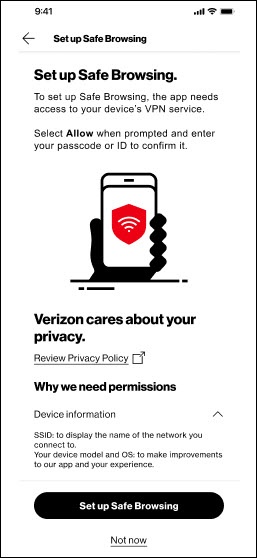
- From the ‘Set up Safe Browsing’ screen, tapSet up Safe Browsing.If Set up Safe Browsing is grayed out, scroll down to review all the info on Safe Browsing then tapSet up Safe Browsing.
- If prompted to add VPN configurations, tap 'OK' or 'Allow".
- If prompted, enter your device passcode to allow Safe Browsing to activate.
- From the 'Start browsing safely' screen, tapOkay.