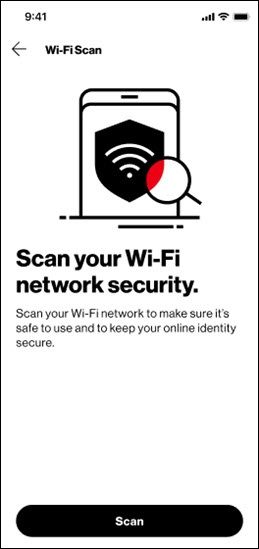
Digital Secure App - Perform a Wi-Fi Scan
Here's how to keep your online identity secure by scanning your Wi-Fi network via the Digital Secure app.
- Open the Digital Secure app.
- From the Dashboard, scroll down to ‘Scan your Wi-Fi network and system’ then tapScan.Alternatively, from the Services tab, navigate .
- Once the scan is complete, the app provides a Connection status (e.g., Safe network, Unsafe network) and guide you based on the results to do one of the following:
- Turn on VPN
- Remove an unsafe network from your trusted Wi-Fi list when no longer safe
- Disconnect from unsafe Wi-Fi
- To set up Wi-Fi auto scan to always check network security:
- Tap theSettings icon
(bottom right).
- From the 'Service Settings' section, tapWi-Fi Scan.
- Tap theAuto-scan switchto turn on
.