TCL TAB Disney Edition 2 - Use Multi window
Here's how to use two apps simultaneously on your TCL TAB Disney Edition 2.
- 'Multi window' is also referred to as split screen.
- The 'Multi window' feature allows multiple apps to be run on the current screen at the same time.
- Not all apps support the 'Multi window' feature.
Open in Split Screen View
- From a Home screen, tap theRecent apps icon
(lower-right).
- Scroll left or right to locate the preferred app.
- Tap thedropdown menu icon
at the top of the app then tap
Split top.Split top is not available for every app. - From the list in the bottom half of the screen, tap the second app to be viewed.When two apps are on the screen:
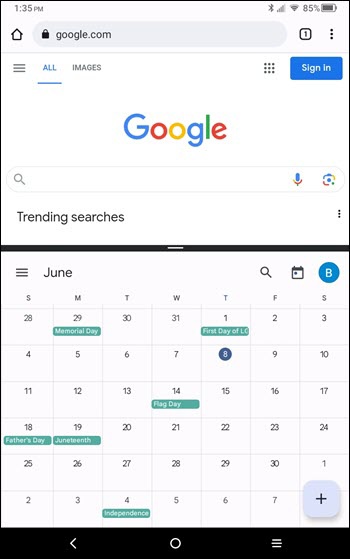
- Adjust the size of the apps by sliding the horizontal bar between the apps up or down.The image below is an example.
- Tap the horizontal bar between the apps then tap any of the following icons:
- Switch
: Switches the top and bottom apps.
- Apps
: Changes the bottom app.
- Float
 : Changes the bottom app to float window mode.
 - Exit
: Exits split screen mode.
 : Changes the bottom app to float window mode.
Open in Float Window View
- From a Home screen, tap the Recent apps icon
- Scroll left or right to locate the preferred app.
- Tap thedropdown menu iconFloat window.Float window is not available for every app.
- Drag the bottom menu bar of the pop-up to move the placement of the window.
- Tap one of the following icons:
- Expand
: Switches the windowed app to full-screen view.
- Exit
- More options
: Displays the following additional options:
- Rotate
- Switch
- Fold
- Apps
- Split