TCL TAB Disney Edition 2 - Power Up in Safe Mode
Here's how to boot your TCL TAB Disney Edition 2 into Safe Mode to help determine if an app is causing it to freeze, reset or run slowly.
Safe Mode puts your tablet in a diagnostic state (returned to default settings) so you can determine if a third-party app is causing your device to freeze, reset or run slowly.
An alternate method is available if the device can be powered on and is responsive.
- Ensure that your tablet isn't connected to a computer via the USB cable.
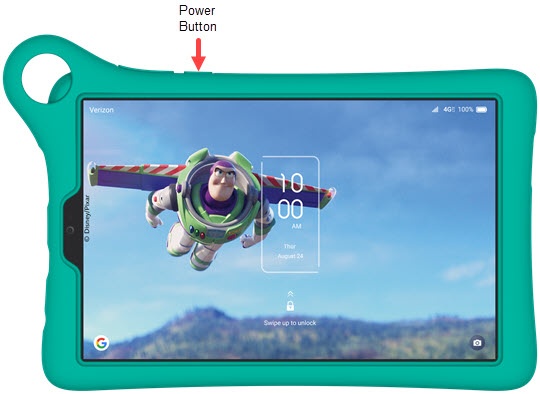
- With the device powered off, press and hold thePower buttonuntil the TCL logo appears then release.
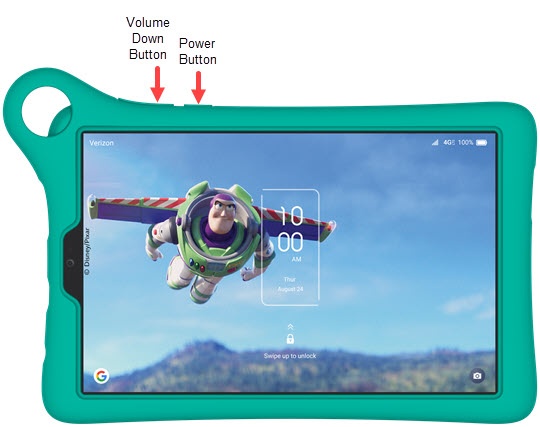
- Approximately 2-3 seconds after the TCL logo appears, press and hold theVolume Downbutton.If pressed too soon, the device won't boot into Safe Mode.
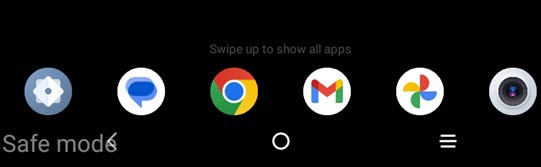
- Continue to hold theVolume Down buttonuntil 'Safe mode' appears in the lower-left of the screen then release.This may take up to 45 seconds.
- With Safe Mode enabled, test device and app functionality.
- To turn Safe Mode off, restart the tablet.Airplane Mode needs to be turned off when the tablet restarts.