Samsung Galaxy Tab S9+ 5G - Capture a Screenshot
Here's how to capture a screenshot on your Galaxy Tab S9+ 5G.
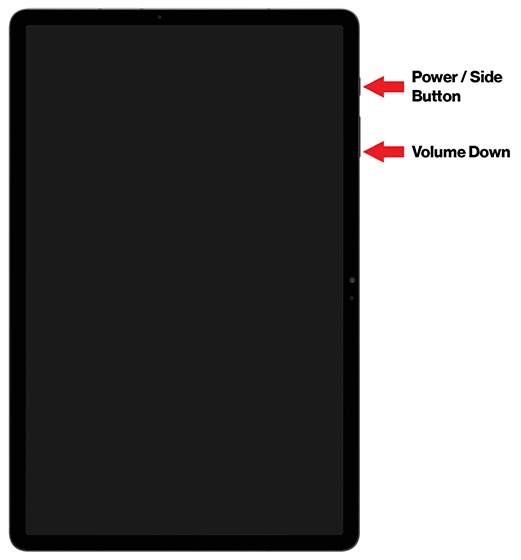
- To capture a screenshot, simultaneously press then quickly release thePower / SideandVolume down buttons.
- Once you capture a screenshot you'll be presented with the following options:If no option is selected, the image automatically saves in the Gallery.
- Smart CaptureAllows you to capture parts of the screen that are hidden.May not be available for all screens.
- Crop and draw
- Tag
- Share
- If editing the screenshot, after making the desired changes, tap one of the following:
- Share
- SaveTo view the screenshot you've taken, swipe up from the center of a Home screen then navigate:.GalleryAlbumsScreenshots