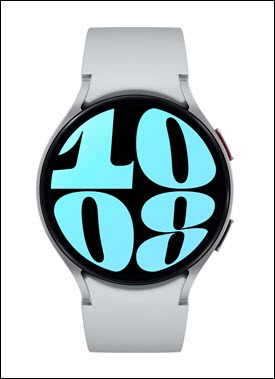
Samsung Galaxy Watch6 / Galaxy Watch6 Classic - View, Open or Close Recently Used Apps
Here's how to view, open or close recently used apps on your Galaxy Watch6 / Galaxy Watch6 Classic.
From your Android™ smartphone, ensure your Galaxy Watch6 / Galaxy Watch6 Classic software is up to date as the steps below apply to the most recent version.
- From the watch screen, swipe up to open the apps screen.
- Tap theRecent apps icon
.
The default location is at the top. - Swipe left or right to view recently used apps then do any of the following:
- To open, tap the desired app on the list.
- To close, swipe the app up.To close all apps, tapClose all(all the way to the left).