Samsung Galaxy Watch6 / Galaxy Watch6 Classic - Restart Device
Here's how to restart your Galaxy Watch5 / Galaxy Watch5 Pro if it crashes and resets, freezes or runs slowly.
A restart (soft reset) can resolve issues like continuous resetting, rebooting, device crashing, freezing, won't ring or vibrate, can't make or receive calls, device locks up and screen doesn't respond.
- From your Android™ smartphone, ensure your Galaxy Watch6 / Galaxy Watch6 Classic software is up to date as the steps below apply to the most recent version.
- A restart / soft reset (turning the device off then back on) is similar to restarting a desktop computer and is one of the first steps in troubleshooting a device.
- In rare cases, a restart could affect data (e.g., backup in progress, cached data, etc.).
- This watch has a non-removable battery. This process can be used to simulate a 'battery pull' when the watch is unresponsive, frozen or doesn't power on.
Preferred Method
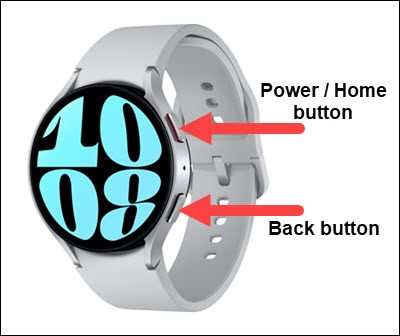
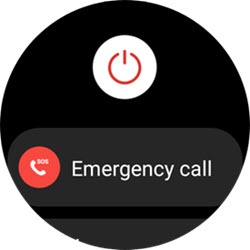
- From the watch screen, press and hold thePower buttonandBack buttonuntil the 'Power off' icon appears (approximately 3 seconds) then release.If the device is unresponsive, attempt the alternate method.
- Tap thePower off icon.If the device is unresponsive, attempt the alternate method.
- Once the device is off, press and hold thePower buttonuntil the Samsung Galaxy Watch6 logo appears, then release.Allow up to 30 seconds for the reset to complete.
Alternate Method
- Simultaneously press and hold thePower buttonandBack buttonuntil the Samsung Galaxy screen appears (approximately 10 seconds) then release.
- Allow up to 30 seconds for the reset to complete.If your device won't power back on, partially charge the device then retry.