Samsung Galaxy Watch6 / Galaxy Watch6 Classic - Adjust Brightness / Display Settings
Here's how to adjust screen brightness and other display settings (Screen timeout, Background style, Font, etc.) on your Galaxy Watch6 / Galaxy Watch6 Classic.
From your Android™ smartphone, ensure your Galaxy Watch6 / Galaxy Watch6 Classic software is up to date as the steps below apply to the most recent version.
Brightness
- From the watch screen, swipe up to open the apps screen.
- Tap theSettings icon
.
- TapDisplay.
- TapBrightness.
- Slide thewhite dotclockwise (increase) or counterclockwise (decrease) to the desired level.
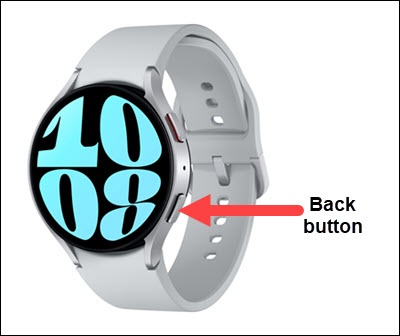
- Press theBack button.
- TapAdaptive brightnessthen turn on
or off
as desired.
When turned on, brightness automatically adjusts based on available light.
Screen Timeout
- From the watch screen, swipe up to open the apps screen.
- Tap theSettings icon
- TapDisplay.
- TapScreen timeout.
- Tap the preferred screen timeout:
- 15 seconds
- 30 seconds
- 1 minute
Font
- From the watch screen, swipe up to open the apps screen.
- Tap theSettings icon
- TapDisplay.
- TapFont style.
- Swipe the screen up or down to scroll, then tap the desired font style.
- Press theBack button.
- TapFont size.
- Slide theblue dotright (increase) or left (decrease) to the desired size.