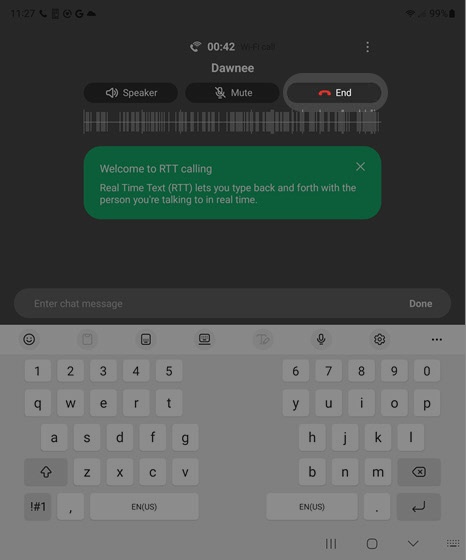
Samsung Galaxy Z Fold5 - Manage RTT Settings
Here's how to use the real-time text (RTT) functionality on your Galaxy Z Fold5.
Real-time text (RTT) is text transmitted instantly as it is typed or created. Recipients can immediately read the message while it is being written without waiting or the need for an additional device.
Change RTT Visibility
- From a Home screen, swipe up from the center of the display to access the apps screen.
- Navigate:.SettingsAccessibilityHearing enhancements
- TapReal Time Text.
- TapRTT call button.
- Select the preferred setting:
- Visible during calls: Shows the RTT call button
only during RTT calls.
- Always visible: Shows the RTT call button whenever you make and receive all calls.

Make a Call with RTT
- With RTT enabled, from a Home screen, tap thePhone icon
.
If unavailable, swipe up from the center of the display then tapPhone. - Do one of the following:
- From the Keypad tab (lower-left), enter a 10-digit number then tap theRTT call icon
- From the Contacts tab (lower-right), select a contact then tap theRTT call icon.
Switch a Call to RTT
- While on a call, tap theMenu icon
.
- TapShow RTT keyboard.
End an RTT Call
- While on a call, tapEnd.