KYOCERA DuraForce PRO 3 - Turn App Permissions On / Off
Here's how to turn permissions for installed apps on your DuraForce PRO 3 on or off.
App permissions give you the ability to customize and control which capabilities you give apps. You can pick and choose which permissions to grant apps at the time of use.
- Downloaded apps designed for Android™ 6.0 (Marshmallow) and up only ask for permission the first time you use a feature rather than asking for permissions out of context.
- Turning off certain permissions may result in basic features no longer working as intended.
To turn permissions on or off for installed apps:
- From a Home screen, swipe up to display all apps.
- Navigate:.SettingsApps
- TapSee all 'xx' apps.
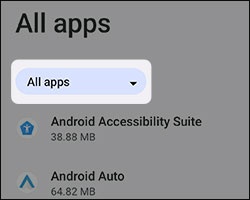
- If available, tapAll apps(upper-left).
- Locate then select the appropriate app.If system apps aren't visible, tap theMenu icon
(upper-right) then tap
Show system. - If available, tapPermissionsthen do any of the following.
- To allow an app permission:
- From the 'Not allowed' section, tap an available permission (e.g., Contacts, Location, etc.).
- Tap the preferred option:Permissions vary by app.
- Allow
- Ask every time
- Allow only while using the app.
- If prompted, review the info then tapConfirm.
- To deny an app permission:
- From the 'Allowed' section, tap an available permission (e.g., Contacts, Location, etc.).
- TapDon't allow.
- If prompted, review the info then tapConfirm.