KYOCERA DuraForce PRO 3 - Common Camera Settings
Here's info on common camera settings (e.g., flash, timer, front / rear camera, etc.) for your DuraForce PRO 3.
For additional support, refer to the Camera section of the user guide.
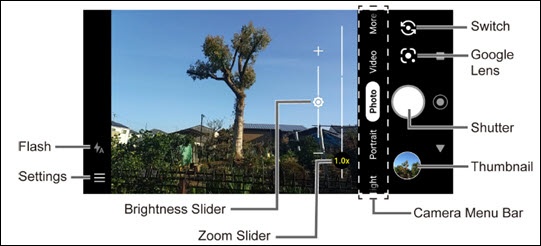
Zoom Slider
- From a Home screen, tap theCamera icon
(at the bottom).
- Tap one of the following on the Zoom Slider to adjust the angle:
- 1.0x: Activates main camera
- 0.6x: Activated wide-angle camera
Switch Camera
- From a Home screen, tap theCamera icon
- Tap theCamera Facing iconto determine which camera to use:
- Rear facing camera
- Front facing camera

Flash
- From a Home screen, tap theCamera icon
- Tap theFlash iconthen select an option:
- Off
- On
- Auto
- Light

Shot Mode
- From a Home screen, tap theCamera icon
- From the 'Camera Menu Bar' section, tap the preferred mode:To view additional modes, scroll to the far right then tapMore.
- Night
- Portrait
- Photo
- Video
HDR
HDR (High Dynamic Range) - Combines photos or videos taken at different exposures for one optimal photo or video.
- From a Home screen, tap theCamera icon
- Tap theMenu iconthen select an option:
- TapMore Settings.
- Tap theuto HDRto turn on
or off
.

Self Timer
- From a Home screen, tap theCamera icon
- Tap theMenu iconthen select an option:
- From the Self timer section, select an option:
- Off
- 2 seconds
- 5 seconds
- 10 seconds
Storage Location
- From a Home screen, tap theCamera icon
- Tap theMenu iconthen select an option:
- TapMore settings.
- TapStorageto select the storage location.
- Phone
- SD cardSD card must be inserted.