Google Pixel Fold - Common Camera Settings
Here's info on common camera settings (e.g., flash, timer, front / rear camera, etc.) for your Pixel Fold.
For additional support, check out this Get started with photos on your Pixel phone or tablet help page.
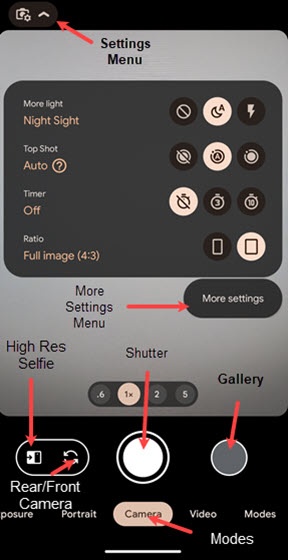
Settings
- From a Home screen, tap theCamera icon
(lower-right).
If unavailable, swipe up or down from the center of the display then tapCamera. - Tap theSettings Menu icon
.
- Select an option then adjust as preferred or tap the switch(es) to turn on
or off
:
- More light
- Top Shot
- Timer
- Ratio
- More settings
- Save location
- Camera sounds
- Google Lens suggestions
- Social share
- Gestures
- Device storage
- Advanced
- Framing hints
- Grid type
- White balance
- Exposure
- Camera photo resolution
- Save selfie as previewed
- Videos stabilization
- Audio zoom
Timer
Used to select the length of the delay before the camera takes a photo automatically.
- From a Home screen, tap theCamera iconIf unavailable, swipe up or down from the center of the display then tapCamera.
- Tap theSettings Menu icon
- Tap theTimer icon
to select an option:
- Off
- 3 seconds
- 10 seconds
Switch Camera
- From a Home screen, tap theCamera iconIf not available, swipe up to view all apps then tapCamera.
- Tap theCamera Facing icon
to switch between rear and front-facing camera.
Shooting Modes
- From a Home screen, tap theCamera iconIf not available, swipe up to view all apps then tapCamera.
- To change the camera mode, swipe left or right to select an option:
- Night SightFor photos taken at night.
- MotionAdds a creative blur to the background in moving pictures.
- PortraitTap an object less than 20 inches away to focus on it then tap the Camera button to take a picture.
- CameraCapture a picture.
- VideoCapture video.
- TapModesto choose one of the following options:
- Panorama
- Photo Sphere
- Lens