moto g play - 2023 - Common Camera Settings
Here's info on common camera settings (e.g., flash, timer, front / rear camera, etc.) for your moto g play - 2023.
For additional support, refer to the Camera section of the user guide.
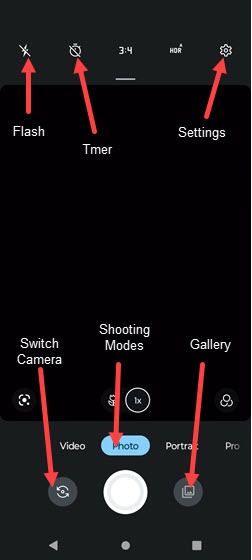
Settings
- From a Home screen, tap theCamera icon
.
- Tap theSettings icon
to access these options:
Tap theBack arrow(upper-right) to return to the previous screen when necessary.
- AI SETTINGSSelect the option and then tap theswitchesto turn on
or off
:
- Google Lens
- PHOTOSSelect the option and configure as preferred:
- Selfie photo mirrorTap theswitchto turn on or off.
- WatermarkTap then configure additional settings on the next screen.
- VIDEOS
- StabilizationTap theswitchto turn on or off.
- CAPTURE SETTINGSTap the switch(es) to turn on or off:
- Tap anywhere to capture
- Shutter sound
- Assistive grid
- Leveler
- Keep last mode
- SAVE SETTINGS
- StorageTap to choose Phone or SD card (if inserted).
- Save locationTap to turn on or off.
- ABOUTSelect this option for more info about camera settings or reset camera settings back to default.
Flash
- From a Home screen, tapCamera
- Tap theFlash icon
then select an option:
- Off
- Auto
- On
Timer
- From a Home screen, tap theCamera icon
- Tap theTimer icon
to change between 3 seconds, 10 seconds and off.
Switch Camera
- From a Home screen, tap theCamera icon
- Tap theSwitch camera icon
to change between front or rear camera.
Shooting Mode
- From a Home screen, tap theCamera icon
- To change the camera mode, swipe left or right to select an option:
- VideoCapture video.
- PhotoCapture a picture.
- PortraitTap an object less than 20 inches away to focus on it then tap the Camera button to take a picture.
- ProManually adjust the ISO sensitivity, exposure value, white balance, and color tone.
- TapMoreto choose one of the following options:
- Spot Color
- Panorama
- Dual Capture
- Timelapse
Storage Location
This option only appears if an SD / memory card is inserted.
- From a Home screen, tapCameraIf unavailable, swipe up from the center of the display then tapCamera.
- Tap theSettings icon
- TapSAVE SETTINGS.
- TapStorage.
- Tap an option:
- Phone
- SD card