Verizon Cloud - Desktop App - Turn Automatic Updates On / Off
Here's how to configure the Verizon Cloud desktop app to keep itself up to date automatically.
The following steps assume you have already installed the Verizon Cloud desktop app on your Windows® computer or Mac®. If necessary, refer to:
- Open the Verizon Cloud desktop app using one of the following methods:
- Click theCloud icon
in the system tray (lower-right, Windows) or menu bar (upper-right, Mac).
- Search forVerizon Cloudin your application list.
- From the toolbar, navigate:.MenuSettingsOther Settings
- Click theAutomatically update switchto turn on
or off
.
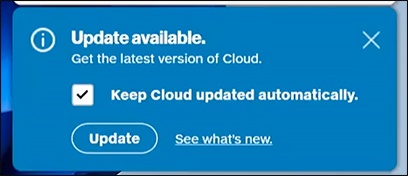
If this setting is turned off, you must manually clickUpdatewhen a new 'Update available' notification appears.You can also turn on automatic updates from the 'Update available' notification by checking the box next to 'Keep Cloud updated automatically'.