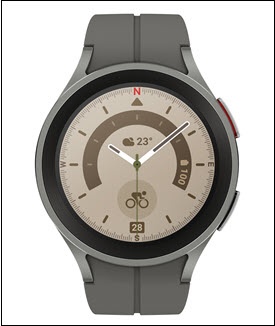
Samsung Galaxy Watch5 / Galaxy Watch5 Pro - Reply to an Email Message
Here's how to reply to email from your Galaxy Watch5 / Galaxy Watch5 Pro.
- Email accounts are managed through the Microsoft® Outlook® app on the paired phone, not from the watch.
- From your Android™ smartphone, ensure an email account has been added to the Microsoft Outlook app.
- To send or receive emails, you'll need to:
- ensure Bluetooth® is enabled on both the watch and smartphone.
- keep the watch near your smartphone throughout the entire process.
- From the watch screen, swipe up to open the apps screen.
- Tap theMicrosoft Outlook app
.
- Tap the new message notification or Inbox.
- Review the email message then scroll down to view emails options (e.g., Archive, Reply,etc.).
- TapReplythen perform one of the following:
- Send a voice reply:
- Tap theVoice icon
.
- Record your custom message then tap theSend icon
.
- Type a Message.
- Tap theKeyboard icon
.
- Tap the Message field.
- Swipe up from the bottom of the watch face to change the text input method (e.g., Write text by hand, keypad, numbers, etc.) then enter a message.
- Tap theSend icon.
- Reply with default quick reply.
- Tap the applicable quick reply option.Quick replies can't be edited. Use the paired phone to reply to an email with a customizable message.