Samsung Galaxy Z Flip4 - Common Camera Settings
Here's info on common camera settings (e.g., flash, timer, front / rear camera, etc.) for your Galaxy Z Flip4.
For additional info on camera settings, refer to the 'Camera' section of the user guide.
Positioning of icons varies depending on orientation of the device (portrait or landscape).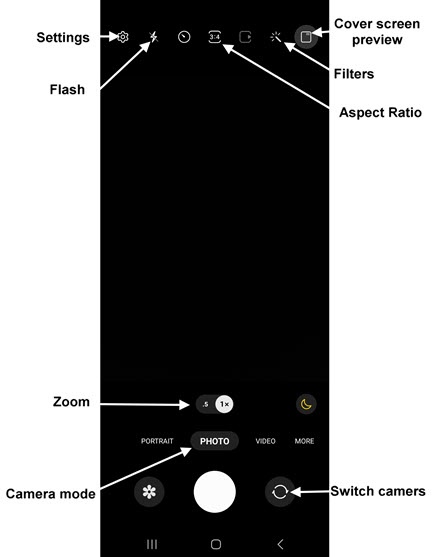
Settings
- From a Home screen, tapCamera
(lower-right).If unavailable, swipe up or down from the center of the display then tap
Camera.If unavailable, swipe up or down from the center of the display then tapCamera. - TapSettings
.
- Tap any of the following options to turn on
or off
:
- Scene optimizer
- Shot suggestions
- Scan QR codes
- Save selfies as previewed
- Reduce file size
- Video stabilization
- Fit to Screen (3:4 ratio)
- Tracking auto-focus
- Grid lines
- Location tags
- Shutter sound
- Vibration feedback
- TapSwipe Shutter button tothen select an option:
- Take burst shot
- Create GIF
- TapPicture formatsthen select an option:
- High efficiency pictures
- Raw copies
- TapSelfie color tonethen select the desired option:
- Natural
- Bright
- TapCover screen selfie ratiothen select the desired option:
- Match front camera
- 1:1 (square)
- TapAdvanced recording optionsthen select the desired option:
- Reduce file size
- HDR10+ Videos
- TapShooting methodsthen configure the following options as preferred:
- Press Volume keys toTap then select an option:
- Take picture or record video
- Zoom in or out
- Control system volume
- Voice commandsTap the switch to turn on or off.
- Floating Shutter buttonTap the switch to turn on or off.
- Show palmTap the switch to turn on or off.
- TapSettings to keepthen tap the switches to turn on or off:
- Camera mode
- Selfie angle
- Filters
- Super steady
- Tap theBack icon
(upper-left) to return to the Camera.
Flash
- From a Home screen, tapCameraCamera.If unavailable, swipe up or down from the center of the display then tapCamera.
- Tap theFlash icon
.
- Select an option:
- Off
- Auto
- On
Self-timer
Used to select the length of the delay before the camera takes a photo automatically.
- From a Home screen, tapCameraCamera.If unavailable, swipe up or down from the center of the display then tapCamera.
- Tap theSelf-timer icon
.
- Select an option:
- Off
- 2 seconds
- 5 seconds
- 10 seconds
Aspect Ratio
- From a Home screen, tapCameraCamera.If unavailable, swipe up or down from the center of the display then tapCamera.
- Tap theAspect Ratio icon
.
- Select an option:
- 3:4
- 9:16
- 1:1
- 9:22
Motion Photo
- From a Home screen, tapCameraCamera.If unavailable, swipe up or down from the center of the display then tapCamera.
- Tap theMotion photo icon
to capture a few seconds of action leading up to when the shutter button is released.
Motion photo is on when icon appears yellow.
Filters
Used to apply a beauty or filter effect.
- From a Home screen, tapCameraCamera.If unavailable, swipe up or down from the center of the display then tapCamera.
- Tap theFilters icon.
- Select 'Filters' or 'My Filters' then swipe up or down to choose a preset effect (e.g., Warm, Cool, Lolli, etc.).Filter names appear at the bottom of the Camera screen.
Switch Camera
- From a Home screen, tapCameraCamera.If unavailable, swipe up or down from the center of the display then tapCamera.
- On the Camera screen, swipe up or down from the center of the display or tap theCamera Facing icon
to switch between rear and front-facing camera.
Shot Modes
- From a Home screen, tapCameraCamera.If unavailable, swipe up or down from the center of the display then tapCamera.
- To change the camera mode, swipe left or right to select an option:If necessary, tapMOREto show additional shooting modes.
- PORTRAIT: Captures a subject with a soft out-of-focus background.
- PHOTO: Capture a picture.
- VIDEO: Capture video.
- PRO: Manually adjust the ISO sensitivity, exposure value, white balance, and color tone.
- PRO VIDEO: Manually adjust the ISO sensitivity, Temperature, Tint, etc.
- SINGLE TAKE: Capture multiple photos and videos with a single press of the shutter button.
- NIGHT: Minimizes noise from dark environments to enhance photo's details.
- FOOD: Optimizes images taken of food.
- PANORAMA: Tap the Camera button then pan slowly in one direction.
- SUPER SLOW-MOTIONCapture video in super slow-motion.
- SLOW MOTIONCapture video in slow motion.
- HYPERLAPSE: Create time-lapse videos.
- PORTRAIT VIDEO: Capture higher depth of field while shooting videos.
- DIRECTOR'S VIEWPreview all lenses, record with the front and rear cameras at the saRatioe time.
- IXBY VISION: Scans for objects in the field of view and searches the internet for similar objects.
- AR ZONE: Uses augmented reality technology to let you draw in 3D with your finger.
Zoom
- From a Home screen, tapCameraCamera.If unavailable, swipe up or down from the center of the display then tapCamera.
- Tap theZoom icon(1x, .5) then select the preferred zoom level:
- 0.5
- 1.0
- 2.0
- 4.0
- 8.0