Google Pixel 6a - Common Camera Settings
Here's info on common camera settings (e.g., flash, timer, front / rear camera, etc.) for your Pixel 6a.
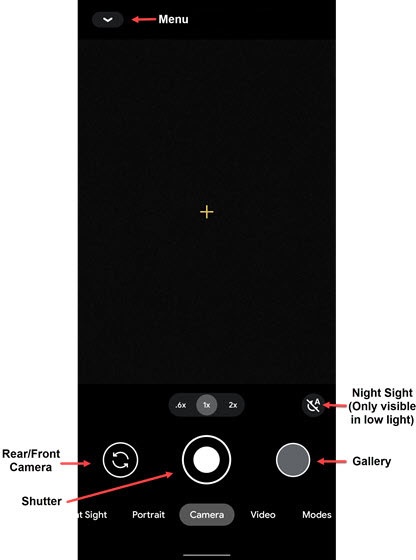
Camera Options
- From a Home screen, tap theCamera icon
(at the bottom).
- From the main camera screen, select an option:
- ShutterTap to take a picture in camera mode or record video in video mode.
- GalleryTap to access the photo gallery.
- Scroll left or right then tap a Quick Camera option:
- Night SightTap to take a low-light photo without the flash.
- PortraitTap to switch the camera to portrait mode.
- CameraTap to switch to camera mode.
- VideoTap to switch to video mode.
Motion
- From a Home screen, tap theCamera icon
- Tap one of the following Motion icons:
- Motion off
- Motion auto
- Motion on

Timer
- From a Home screen, tap theCamera icon
- Tap one of the following Timer icons:
- off
- 3 sec
- 10 sec

Flash
- From a Home screen, tap theCamera icon
- Tap one of the following Flash icons:
- None
- Night Sight
- Flash on

Settings
- From a Home screen, tap theCamera icon
- TapMore settings.
- Tap to select an option or turn on
or off
:
- General
- Save location
- Camera sounds
- Google Lens suggestions
- Advanced
- Composition
- Framing hints
- Photo
- Save selfie as previewed
- Video
- Video stabilization
- Audio Zoom
- Help & feedback
- Send feedback
- Help
Rear or Front Facing Camera
- From a Home screen, tap theCamera icon
- Tap theCamera Facing iconto switch between rear and front camera.

Modes
- From a Home screen, tap theCamera icon
- TapMode.
- Select an option:
- Panorama
- Photo Sphere
- Lens