Samsung Galaxy S22 / Galaxy S22 Ultra - Set Up Fingerprint Recognition
Here's how to set up fingerprint recognition on your Galaxy S22 / Galaxy S22+ / Galaxy S22 Ultra.
- A fingerprint is utilized to unlock the device.
- For the fingerprint scanner to operate, hands must be clean and free of moisture, dirt, oil, lotion, dyes, etc.
- Up to 4 fingerprints can be registered on the device.
- From a Home screen, swipe up or down from the center of the display to access the apps screen.These instructions only apply to Standard mode and the default Home screen layout.
- Navigate:.SettingsSecurity and privacy
- TapBiometrics
- TapFingerprints.
- Enter the current PIN, password or pattern then tapContinue.If no screen lock is active, set up a lock option (e.g., pattern, PIN or password).
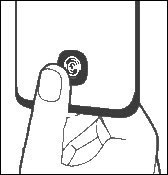
- Follow the on-screen tutorial to scan your fingerprint.Repeat as needed until the process is complete.
- TapDone(lower-right).
- Tap theFingerprint unlock switchto turn on
or off
.