Orbic Speed 5G - Network Mode Settings
View this info on network mode settings if you're having issues with data services on your Orbic Speed 5G.
Changing advanced settings may be harmful to the stability, performance, and security of your Orbic® Speed 5G™. Contact your local IT admin before altering advanced settings.
Via Device Display
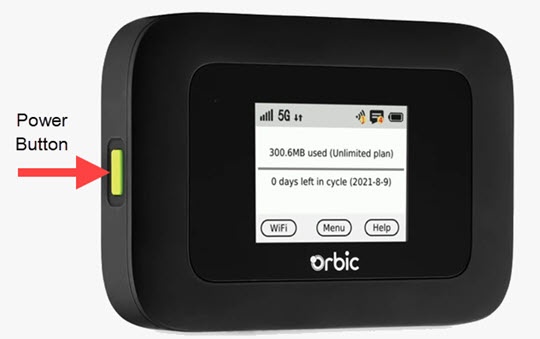
- Press thePower buttonto turn on the display.
- TapMenu(on the device screen).
- From the 'Menu' screen, swipe the screen to the left or right to view the additional menu options and tapSettings.
- TapNetwork Settings.If applicable, swipe the screen to the left or right to view additional options.
- View the setting.Auto (5G Prefer) is the default option. This settings can only be adjusted via the Admin Web Interface.
Via Admin Web Interface
- Access the Admin Web Interface.
- From the top menu, clickConfiguration.
- From the left menu, navigate: .
- Click the menu dropdown next to 'Network Mode' then select from the following options:Selected when a blue dot is present next to the desired option.
- Auto (5G Prefer)
- 4G
- ClickSave Changes.
