Windows 11 - Sign in / Out
Here's how to sign in or out of your account on your Windows 10 device.
- Refer to Windows® support article for additional info, Sign in to or out of Windows, then navigate:Microsoft account>Get help for Microsoft account>Sign in to a Microsoft account.
- If your device isn't running Windows 11, refer to the Windows 10 instructions.
Sign Out
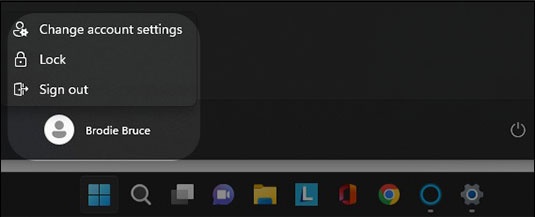
- From the Windows desktop, tap or clickStart
.
- Tap or click theAccount icon(picture) then tap or clickSign out.
Sign In (Signed Out of Previous User)
- Swipe up on the lock screen.If using a mouse click on the lock screen to get to the User screen.
- Select the user (located in the lower-left corner) then enter the password, if necessary.
Sign In (Powered Off)
- If powered off, press thePower buttonto turn the device on.
- Swipe up on the lock screen.If using a mouse click on the lock screen to get to the User screen.
- Select the user (located in the lower-left corner) then enter the password, if necessary.