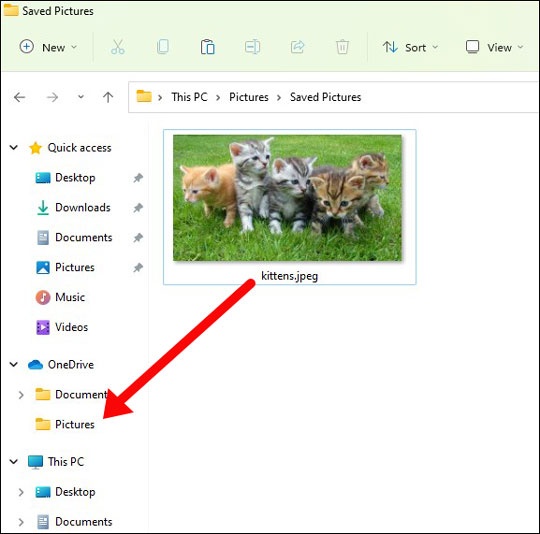
Windows 11 - Add Files (OneDrive)
Here's how to add files on your Windows 11 device via OneDrive.
- If your device isn't running Windows® 11, refer to Windows 10 instructions.
- For more info regarding OneDrive, such as how to copy, move, save, view and share files, refer to Microsoft's support article.
- Windows® can automatically back up device content to OneDrive including settings, app list, photos, videos, and messages.To utilize the backup functionality, the device must be signed in with a Microsoft account and there must be sufficient space in OneDrive to store the data.
- Open File Explorer.From the Windows desktop, navigate:.StartAll appsFile Explorer
- Locate the file(s) you'd like to add then drag and drop into a desired OneDrive folder (located in the left-pane), then tap or clickCopy here.File Explorer icons show you the sync status of your offline folders and files:
It's in sync with online version.
It's getting in sync.
The version on your PC is out of sync.