MOTO G PURE - Common Camera Settings
Here's info on common camera settings (e.g., flash, timer, front / rear camera, etc.) for your moto g pure.
For additional info on camera settings, refer to the Camera and Video section of the user guide.
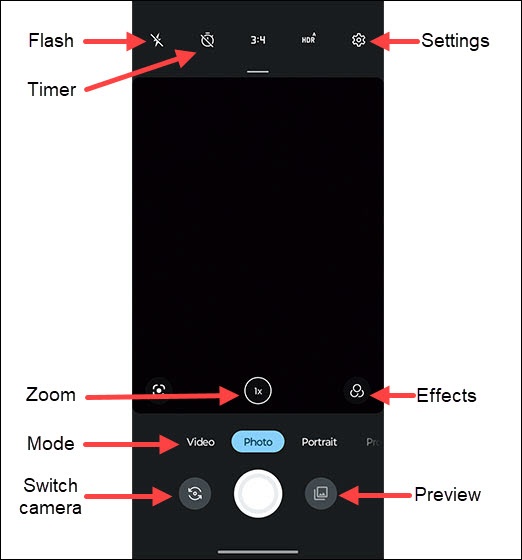
Settings
- From a Home screen, tap theCamera icon
.
- Tap theSettings icon
to access these options:
- AI SettingsTap the switch(es) to turn on or off:
- Auto Smile Capture
- Gesture Selfie
- Smart Composition
- Shot Optimization
- Google Lens
- Photos
- Front photo HDRTap to select Auto, on or off
- Rear Photo HDRTap to select Auto, on or off
- Video
- StabilizationTap to turn on or off.
- Capture settingsTap the switch(es) to turn on or off.
- Tap anywhere to capture
- Shutter sound
- Assistive grid
- Leveler
- Keep last mode
- Save settingsTap to turn on or off.
- Storage (Phone, SD card)
- Save location
Zoom
- From a Home screen, tap theCamera icon
- Touch and hold the center of the camera screen then swipe up or down to increase or decrease camera zoom.
Timer
- From a Home screen, tap theCamera icon
- Tap theTimer icon
to select an option:
- Timer off
- 3s
- 10s
Flash
- From a Home screen, tap theCamera icon
- Tap theFlash icon
to select an option:
- auto
- on
- off
Mode
- From a Home screen, tap theCamera icon
- Select Camera or Video mode.
Switch
- From a Home screen, tap theCamera icon
- Tap theSwitch camera iconto switch between front or rear camera.