Smart Wrist by Orbic - Enable / Disable / Modify SIM PIN
Here's how to change the SIM PIN for your Smart Wrist by Orbic or turn it on / off.
- Ensure the software on your Smart Wrist™ by Orbic® is up to date as the steps below apply to the most recent version.
- Enabling the SIM PIN locks the eSIM so it can't be used until the correct code is entered.
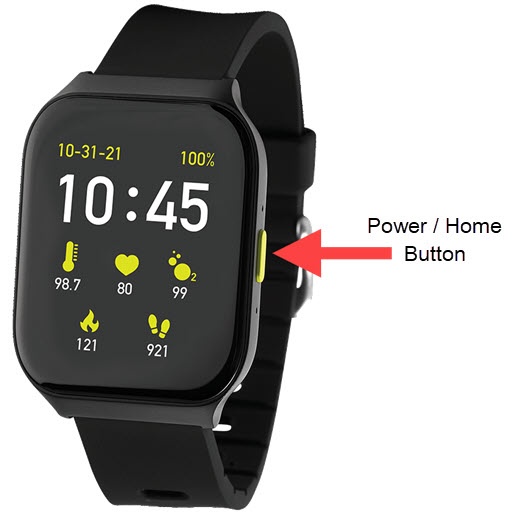
- From the watch screen, press thePower / Home buttonto open the apps screen.
- Tap theSettings icon
.
- TapCellular.
- TapSIM Card Lock.
- Tap theLock SIM Card switchto turn on
or off
.
To change your SIM PIN, ensure the switch is turned on then do the following:- TapChange SIM PIN.
- Enter the current SIM PIN, tap theDone icon
then tap
OKto confirm.The default SIM PIN is 1111. - Enter the new SIM PIN, tap theDone iconthen tapOKto confirm.
- Re-enter the new SIM PIN, tap theDone iconthen tapOKto confirm.
- Enter the current SIM PIN, tap theDone iconthen tapOKto confirm.The default SIM PIN is 1111.