Smart Wrist by Orbic - Activate / Set Up Device
Here's how to quickly set up your Smart Wrist.
- Before completing the steps below, verify:
- your companion smartphone has a cellular or Wi-Fi connection.
- you're in a Verizon coverage area.
- your eSim activation has been processed.
- Connect your watch to the included charger then power it on.
- Tap the desired language (e.g., English, Espanol, etc.) then tapOK.If prompted, agree to the Terms of Use.
- Scan the applicable QR code presented on the Smart Wrist with your smartphone to Download the Orbic Wear app.Two separate QR codes are provided. One for Android OS and one of Apple (App Store) iOS.This same QR code will be used to pair the watch to your phone after the Orbic Wear app is downloaded.
- Open theOrbic Wear app
on your smartphone.
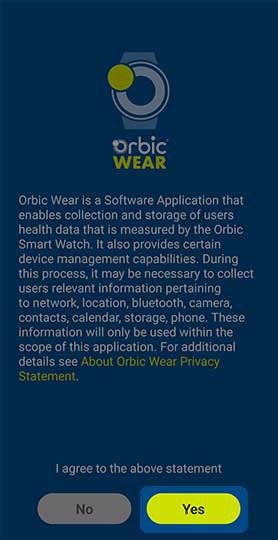
If necessary, install the app using the Google Play™ Store. - To continue, review the Terms of service then tapYes(lower-right).
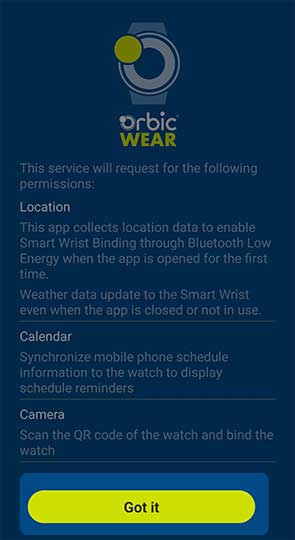
- Review the request for permissions (e.g., Location, Calendar, etc.), then tapGot it.
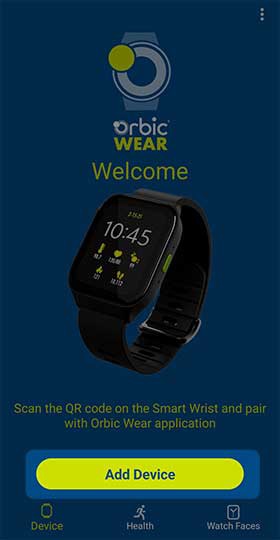
- From the 'Welcome' screen, tapAdd Device.From the 'Allow Orbic Wear to take pictures and record video' prompt, tap one of the following options:
- While using the app
- Only this time
- Don't allowIf this option is selected, the watch may not be able to be setup with your device.
- Scan the applicable QR code on your Watch for Android or Apple (App Store) with your smartphone.
- From the 'Open Location' prompt, review then tapOpen.
- From the 'Allow Orbic Wear to access this device's location' prompt, tap one of the following options:
- While using the app
- Only this time
- Don't allowIf this option is selected, the watch may not be able to be setup with your device.
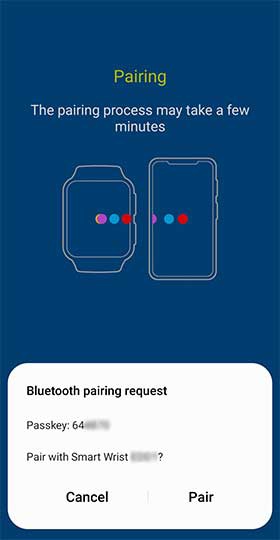
- From the Bluetooth Pairing prompt, ensure the pairing code matches what appears on the watch and phone, then tapPairon both devices to confirm.
- Allow a few moments for the pairing to complete.
- If you're having trouble pairing, try the following steps:
- Restart both devices (smartphone and watch).
- Check your Bluetooth® connection.
- Unpair your devices and try again.
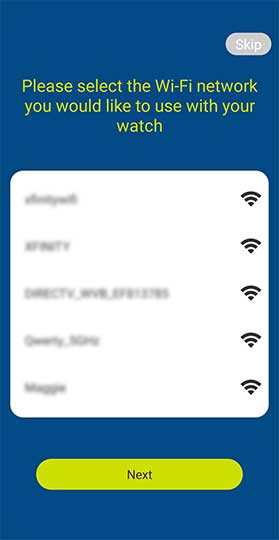
- From the 'Wi-Fi network' screen, tap the preferred Wi-Fi connection to use with your watch or tap 'Skip' to bypass this option.
- From the 'Enable Notification Permission under Settings' screen, tapNext.If prompted, from the 'Notifications' screen:
- Tap theAllow notification access switchto turn on for the Orbic Wear app.
- TapAllowto confirm.
- Tap theBack icon
(upper-left) to return to the previous screen.
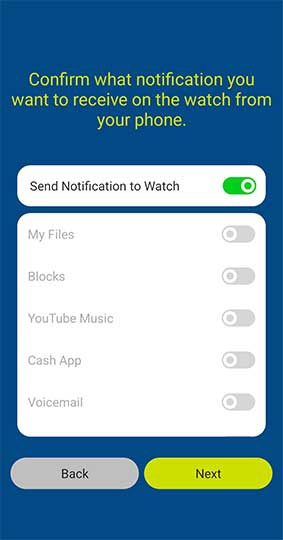
- From the 'Confirm what notification you want' screen, tap from the available switches (e.g., Camera, Maps, Send Notification to Watch, etc.) to turn on or off then tapNextto continue.
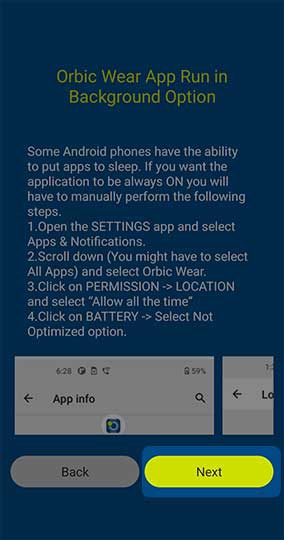
- From the 'Orbic Wear App Run in Background Option' screen, review then tapNext.
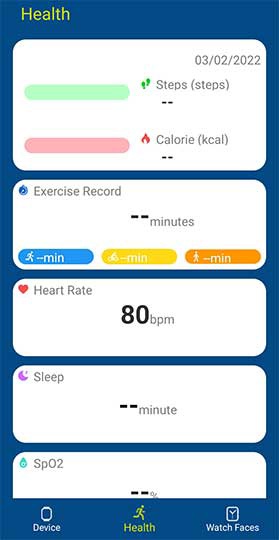
- Once you are taken to the 'Health' screen, you may navigate through the available tabs for additional watch settings.
- From your watch, continue to tapNextorSkipas you are navigated through tips and tricks on the watch until you are on the Home screen.Setup is completed once you are on the Home screen on both the Watch and the Smart Wear app on your smartphone.