Samsung Galaxy Tab A7 Lite - Common Camera Settings
Here's info on common camera settings (e.g., flash, timer, front / rear camera, etc.) for your Galaxy Tab A7 Lite.
For additional info on camera settings, refer to the Camera section of the user guide.
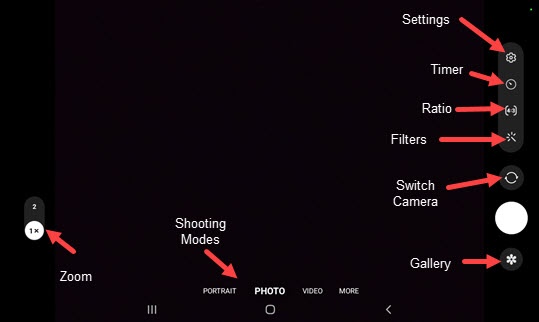
Settings
- From a Home screen, tap theCamera icon
.
If not available, swipe up to view all apps then tapCamera. - TapSettings
.
To reset all camera settings back to default, tapReset settings(at the bottom). - Select an option then adjust as preferred or tap the switch(es) to turn on
or off
:
- Scan QR codes
- Swipe Shutter button to
- Watermark
- Save selfies as previewed
- Grid lines
- Location tags
- Shooting methods
- Settings to keep
- Storage location
- Shutter sound
Timer
Used to select the length of the delay before the camera takes a photo automatically.
- From a Home screen, tap theCamera iconIf not available, swipe up to view all apps then tapCamera.
- Tap theTimer icon
.
- Select an option:
- Off
- 2 secs
- 5 secs
- 10 secs
Switch Camera
- From a Home screen, tap theCamera iconIf not available, swipe up to view all apps then tapCamera.
- On the photo preview screen, swipe up or down from the center of the display or tap theCamera Facing icon
to switch between rear and front-facing camera.
Shooting Modes
- From a Home screen, tap theCamera iconIf not available, swipe up to view all apps then tapCamera.
- To change the camera mode, swipe left or right to select an option:
- PORTRAITTap an object less than 20 inches away to focus on it then tap the Camera button to take a picture.
- PHOTOCapture a picture.
- VIDEOCapture video.
- TapMOREto choose one of the following options:
- PROManually adjust the ISO sensitivity, exposure value, white balance, and color tone.
- PANORAMATap the Camera button then pan slowly in one direction.
- FOODDrag to move the area in focus.
- HYPERLAPSECreate time-lapse videos.
Storage Location
This option only appears if an SD / memory card is inserted.
- From a Home screen, tapCameraIf unavailable, swipe up from the center of the display then tapCamera.
- Tap theSettings icon
- Tap theStorage location.
- Tap then select an option:
- Internal storage
- Memory card