Samsung Galaxy A12 - Common Camera Settings
Here's how to use some common camera functions and settings (e.g., flash, HDR, switch cameras, etc.) on your Galaxy A12.
For additional support, refer to the Camera section of the user guide.
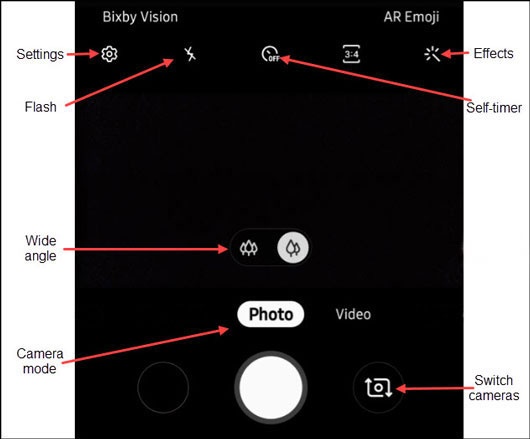
Shooting Methods
- From a Home screen, tap theCamera icon(lower-right).If unavailable, swipe up or down from the center of the display then tapCamera.
- TapSettings.
- TapShooting methods.
- TapPress Volume key tothen select an option (e.g., Take picture or record video, Zoom, etc.).
- Tap any of the following options to turn on
or off
:
- Floating Shutter button
- Show palm


Auto HDR
HDR (High Dynamic Range) combines photos or videos taken at different exposures for one optimal photo or video.
- From a Home screen, tap theCamera icon(lower-right).If unavailable, swipe up or down from the center of the display then tapCamera.
- TapSettings.
- Tap theAuto HDR switchto turn on
Flash
- From a Home screen, tap theCamera icon(lower-right).If unavailable, swipe up or down from the center of the display then tapCamera.
- Tap theFlash icon.
- Select an option:
- On
- Off
- Auto

Self-timer
- From a Home screen, tap theCamera icon(lower-right).If unavailable, swipe up or down from the center of the display then tapCamera.
- Tap theSelf-timer icon.
- Select an option:
- Off
- 2 secs
- 5 secs
- 10 secs

Camera Effects
- From a Home screen, tap theCamera icon(lower-right).If unavailable, swipe up or down from the center of the display then tapCamera.
- Tap theEffects icon.
- Swipe left to choose a preset effect (e.g., Warm, Cool, Lolli, etc.).

Wide angle
- From a Home screen, tap theCamera icon(lower-right).If unavailable, swipe up or down from the center of the display then tapCamera.
- Tap theWide angle iconto change between Ultra wide angle and Wide angle.

Camera mode
- From a Home screen, tap theCamera icon(lower-right).If unavailable, swipe up or down from the center of the display then tapCamera.
- To change the camera mode, swipe left or right to select an option:
- Live Focus
- PhotoCapture a picture.
- VideoCapture video.
- ProManually adjust the ISO sensitivity, white balance, and color tone.
- PanoramaTap theCamera buttonthen pan slowly in one direction.
- MacroUsed to capture images up close (3-5 cm away).
- FoodOptimizes images taken of food.
Switch cameras
- From a Home screen, tap theCamera icon(lower-right).If unavailable, swipe up or down from the center of the display then tapCamera.
- Tap theCamera Facing iconto switch between rear and front-facing camera.
