Cancel Apple Arcade Subscription
Here's how to cancel your Apple Arcade subscription.
Cancel Through Apple
For more information on how to cancel Apple subscriptions, visit this Apple support page.
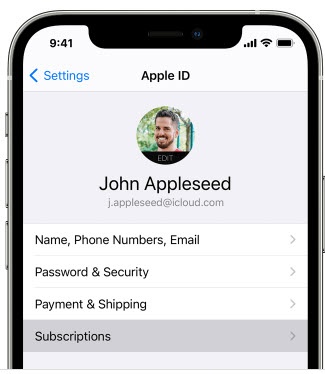
- Open theSettings app.
- Tap your name.
- TapSubscriptions.
- TapApple Arcade.
- TapCancel Subscription.
My Verizon app
- If you enrolled before 11/3/2021 use the Cancel Through Apple section.
- Managing your Apple Arcade subscription isn't available in the My Verizon app on Apple devices unless included in your plan. Use the Cancel Through Apple or My Verizon Website section to manage.For Apple Arcade eligibility and promotional offers, check out these Apple Arcade FAQs.
- Open theMy Verizon app
.
- Tap theAccount tab(at the bottom).If prompted, enter your password, fingerprint or Face ID.Only Account Owners or Account Managers can perform these steps, here's additional info on account roles.
- TapServices & perks.
- SelectSee Allfrom the 'Manage Services & Perks' section then tapManagein the 'Apple Arcade' section.
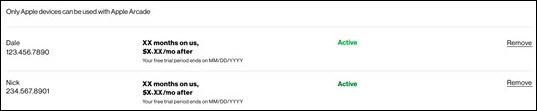
- From the 'Apple Arcade' screen tapRemoveon the desired line.
- To continue, review the changes then tapConfirm.
- From the Confirmation screen, tapGot it.
My Verizon Website
- If you enrolled before 11/3/2021 use the Cancel Through Apple section.
- Only the Account Owner or Manager can perform these steps; here's additional info on account roles.
- From a web browser, sign in to My Verizon.
- From the My Verizon Home page, navigate:.If accessing from a mobile browser, select theMenu icon
(upper-right) then navigate: .
- Select Services & perks overview.
- From the 'Manage Services & Perks' section, select theMore icon
in the 'Apple Arcade' section.
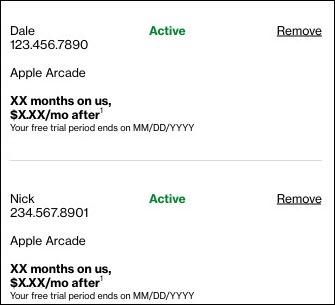
If necessary, selectSee Allfrom the 'Manage Services & Perks' section then from the 'Apple Arcade' section, selectManage. - From the 'Manage' section, selectRemove.
- To proceed, review the message then selectRemove Apple Arcade.It may take up to 24 hours for these changes to take effect.