Samsung Galaxy A42 5G - Volume Controls
Here's how to adjust the volume if your Galaxy A42 5G doesn't vibrate or play sounds when receiving calls / messages.
- From a Home screen, swipe up to access the apps screen.These instructions only apply to Standard mode and the default Home screen layout.
- Navigate:.SettingsSounds and vibration
- TapVolume.
- Adjust any of the following:Drag the slider left or right to adjust the level. If unavailable, ensure the Do not disturb switch and the Mute all sounds switch is turned off.
- Ringtone
- Media
- NotificationsIf unavailable, ensure that the ringtone setting is on.
- SystemIf unavailable, ensure that the ringtone setting is on.

The volume can also be adjusted by pressing the 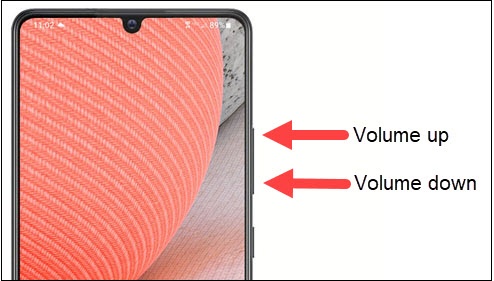
Volume buttons
(right edge) up (+) or down (-).