Samsung Galaxy Tab S7+ 5G - Use Multi Window
Here's how to use two apps simultaneously on your Galaxy Tab S7+ 5G.
- 'Multi window' is also referred to as split screen.
- The 'Multi window' feature allows multiple apps to be run on the current screen at the same time.
- Not all apps support the 'Multi window' feature.
Open in Split Screen View
Allows you to view two apps side-by-side.
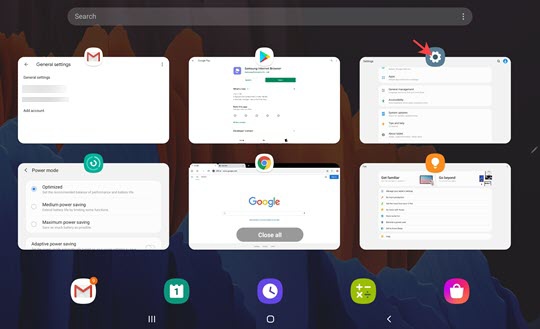
- From a Home screen, tap theRecent apps icon
(at the bottom).
- Scroll left or right to locate the preferred app.
- Tap the app icon (e.g., Gmail, Settings, Email, etc.) located at the top of the panel then tapOpenin split screen viewOptions may vary depending on the app selected.The image below is an example.
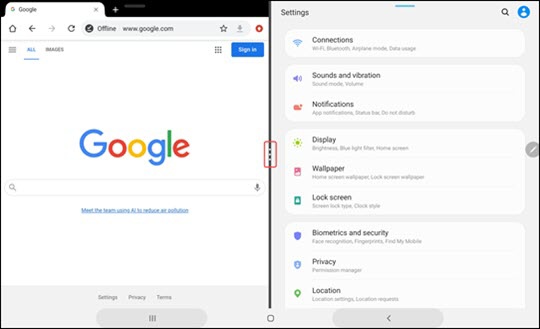
- From the 'Select split-screen app' screen, tap the second app to be viewed.When on, adjust the size of the apps by sliding the middle bar between the apps up / down or right / left (depending on view) or tap theMenu icon
then choose any of the following:
- Split screen icon
to change the current view (vertical or horizontal).
- Swap screen icon
to change the side each app is on.
The image below is an example.
Open in Pop-Up View
Allows you to view one app while another is open behind it.
- From a Home screen, tap theRecent apps icon
- Scroll left or right to locate the preferred app.
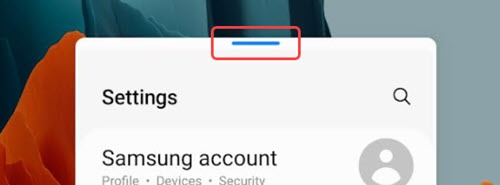
- Tap the app icon (e.g., Gmail, Settings, Email, etc.) located at the top of the panel then tapOpen in pop-up view.Options may vary depending on the app selected.The image below is an example.
- When on, do any of the following:
- Touch and hold theBlue barat the top of the pop-up to move the placement of the app.
- Tap theBlue barthen do any of the following:
- Adjust the opacity of the pop-up by tapping theContrast icon
then sliding the blue dot left to right.
- Adjust the pop-up by tapping the Minimize
or Maximize
or Close icon
.