Samsung Galaxy S21 5G / Galaxy S21 Ultra 5G - Common Camera Settings
Here's info on common camera settings (e.g., flash, timer, etc.) for your Galaxy S21 5G / Galaxy S21+ 5G / Galaxy S21 Ultra 5G.
For additional info on camera settings, refer to the 'Camera and Gallery' section of the user guide.
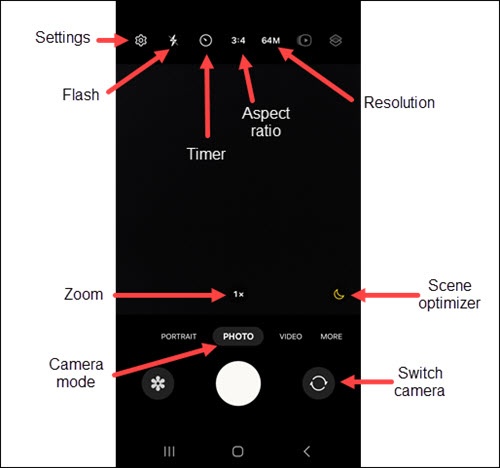
Settings
- From a Home screen, tap theCamera icon
(lower-right).
If unavailable, swipe up or down from the center of the display then tapCamera. - For general camera settings, tap theSettings icon
(upper-left in portrait orientation).
- Tap an option to turn on
or off
:
- Scene optimizer
- Shot suggestions
- Scan QR codes
- Save selfies as previewed
- Video stabilization
- Auto HDR
- Location tags
- Shutter sound
- Vibration feedback
Flash
- From a Home screen, tapCameraIf unavailable, swipe up from the center of the display then tapCamera.
- Tap theFlash icon
then select an option:
- Off
- Auto
- On
Timer
- From a Home screen, tapCameraIf unavailable, swipe up from the center of the display then tapCamera.
- Tap theTimer icon
then select an option:
- Off
- 2 seconds
- 5 seconds
- 10 seconds
Aspect Ratio
- From a Home screen, tapCameraIf unavailable, swipe up from the center of the display then tapCamera.
- Tap theAspect Ratio icon
then select an option:
- 3:4 50MP
- 3:4 (4:3 in landscape mode)
- 9:16 (16:9 in landscape mode)
- 1:1
- Full
Resolution
- From a Home screen, tapCameraIf unavailable, swipe up from the center of the display then tapCamera.
- Tap the current Resolution (12 MP or 64 MP) then select an option:
- 12 MP
- 64 MP
Shooting Methods
- From a Home screen, tap theCamera iconIf unavailable, swipe up or down from the center of the display then tapCamera.
- For general camera settings, tap theShooting methods
- TapShooting methods.
- Tap an option to turn on
- Voice commands
- Floating Shutter button
- Show palm