Stream TV - Delete Paired Bluetooth Connection
Here's how to remove paired Bluetooth devices from your 2nd-generation Stream TV.
If you need to delete a previously paired Bluetooth® device from your 2nd-generation Stream TV, follow these step-by-step instructions.
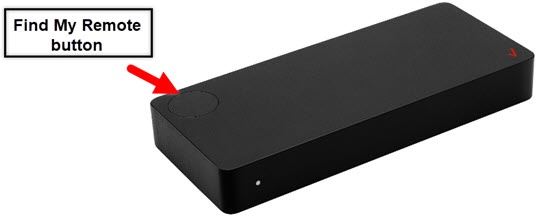
- The steps below apply to the 2nd-generation Stream TV which can be identified by the Find My Remote button. If you have the original Stream TV model, refer to Stream TV - Delete Paired Bluetooth Connection.
- Ensure your Stream TV is up to date as the following steps apply to the most recent version.
- If necessary, press theHome button
on your Stream TV remote to wake up your device.
- From the Stream TV Home screen, select theSettings menu
(upper-right).
Utilize 5-way navigation pad on the remote to highlight and the center (OK) button to select. - SelectAndroid TV settingsthen selectRemotes & Accessories.
- Select the desired paired device to remove.
- SelectUnpair.
- SelectOK.
For additional info on Stream TV, check out the Stream TV support page.