Stream TV - Cast from Mobile Device
Here's how to use 2nd-generation Stream TV to display your phone or tablet screen on a TV or monitor.
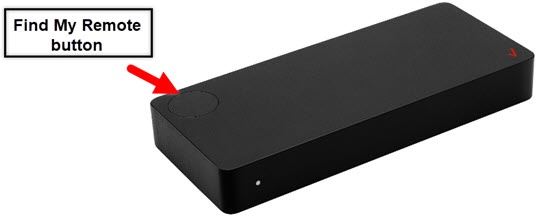
- The steps below apply to the 2nd-generation Stream TV which can be identified by the Find My Remote button. If you have the original Stream TV model, refer to Stream TV - Cast from Mobile Device.
- To share media files, the Stream TV must be set up and an active Wi-Fi connection must be established. Refer to the following for assistance:
- To play or copy media to or from other devices (e.g. computer, phone, etc.), they must be connected to the same Wi-Fi network and may need to be configured for sharing. Refer to the equipment manufacturer for assistance.
- Stream TV has Google™ Chromecast™ built-in. For additional assistance with Chromecast, refer to this page.
You can share your compatible Android™ smartphone / tablet or Apple® iPhone® / Apple® iPad® screen with a TV using a Chromecast-enabled app or the Google Home app.
Chromecast-enabled App
Follow these steps to view supported app content on your TV. The cast option may not be available on all devices or apps.
- Ensure your phone or tablet is connected to the same Wi-Fi network as your Stream TV.
- Open a Chromecast-enabled app on your mobile device (e.g., YouTube™, etc.).Not all apps are optimized for casting. For a current list of Chromecast-enabled apps, refer to this page.
- If prompted, tapYesto allow location permissions.
- In the Chromecast-enabled app, tap theCast icon
then select the desired display from the list.
The location of the Cast icon varies based on app settings.When connected, the Cast icon changes color.To stop casting, tap theCast iconthen tapStop casting.
For additional info, see this Stream TV support page.
Google Home app
- The Google Home app allows you to view your entire screen contents on your TV and is available on Android phones running Android 5.0 and higher, Android tablets running Android 6.0 or higher, and Apple iPhone or iPads running iOS 11.0 or higher.
- The 'Cast my screen' option may not support screen sharing in all apps.
- Contact the Google Home app developer using this page to report issues or share feedback.
- Ensure your phone or tablet is connected to the same Wi-Fi network as your Stream TV.
- If necessary, install the Google Home app from the Google Play™ Store on your Android device or from the App Store on your Apple iPhone or Apple iPad.
- Open theGoogle Home app
.
- If prompted, tapGet started.
- If prompted, tap your preferred Google account to select (check) then tapOK.
- If prompted for location access, tapNextthenALLOW.
- TapStream TVfrom the devices list (at the bottom).
- TapCast my screen(lower-right).
- If prompted, review the 'Cast to mirror device' message then tapCast screen.
For additional info, see this Stream TV support page.