Kazuna eTalk MYFLIX - Capture a Screenshot
Here's how to capture a screenshot on your eTalk MYFLIX.
If you need to take a screenshot on your Kazuna eTalk MYFLIX™ follow these step-by-step instructions.
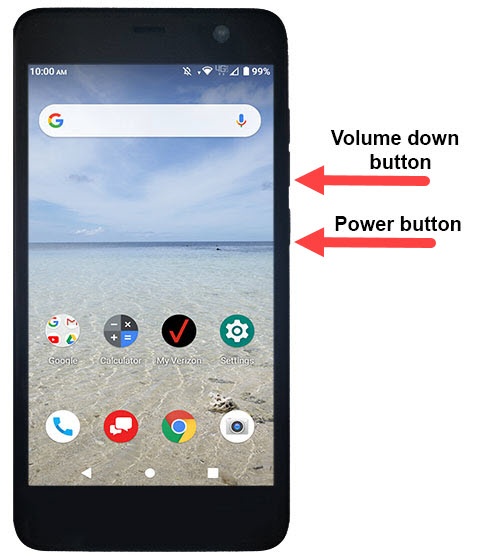
- To capture a screenshot, simultaneously press and hold thePowerandVolume Down buttons.Alternate method: press and hold thePowerbuttonthen tapScreenshot(lower-left).
- Once you capture a screenshot you'll be presented with the following options:If no option is selected, the image automatically saves in the Gallery.
- Share
- Edit
- Delete
- After making the desired changes to the screenshot, tap one of the following:
- Share icon
- Delete iconTo view the screenshot you've taken, navigate: .