Samsung Galaxy Tab S7 5G - Power Up in Safe Mode
Here's how to boot your Galaxy Tab S7 5G into Safe Mode to help determine if an app is causing it to freeze, reset or run slowly.
Safe Mode puts your tablet in a diagnostic state (returned to default settings) so you can determine if a third-party app is causing your device to freeze, reset or run slow.
An alternate method is available if the device can be powered on and is responsive.
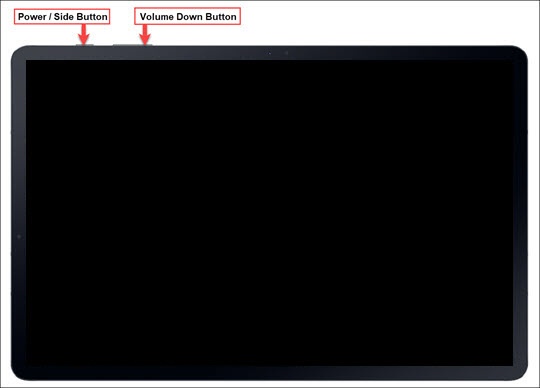
- With the device powered off, press and hold thePower/SideandVolume down buttons(top edge) until the 'Samsung Galaxy Tab S7 5G' screen appears.To power off the device, press and hold thePower/Side buttonandVolume down buttonuntil the 'Power off' prompt appears then release.
- Release thePower buttonbut continue to hold theVolume down button.
- Continue to hold theVolume down buttonuntil 'Safe mode' appears in the lower-left of the unlock or Home screen then release.This may take up to 45 seconds.
- With Safe Mode enabled, ensure Airplane Mode is turned off then test device and app functionality.