Samsung Galaxy Note20 5G / Galaxy Note20 Ultra 5G - Common Camera Settings
Here's info on common camera settings (e.g., flash, timer, front / rear camera, etc.) for your Galaxy Note20 5G / Galaxy Note20 Ultra 5G.
For additional info on camera settings, refer to the Camera section of the user guide.
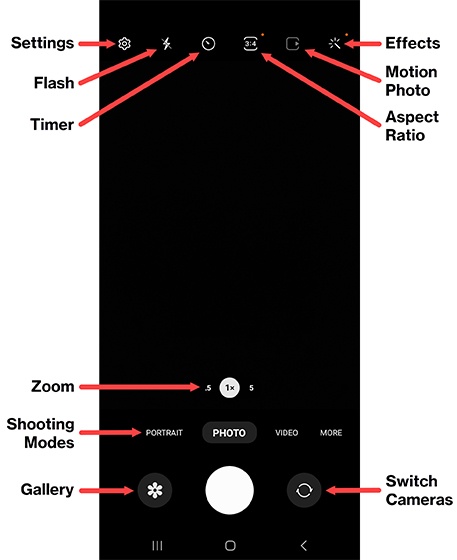
Settings
- From a Home screen, tap theCamera icon
.
If unavailable, swipe up from the center of the display, tapCamera. - Tap theSettings icon
to access the following options:
- Intelligent features: Tap the switches to turn on
or off
.
- Scene optimizerIf desired, tapScene optimizerthen tapScan documents and textto turn on or off.
- Shot suggestions
- Scan QR codes
- Pictures: Select the option then configure as preferred:
- Swipe Shutter button to
- Take burst shot
- Create GIF
- Watermark
- Advanced picture options
- High efficiency pictures
- RAW copies
- Selfies:
- Save selfies as previewedTap to turn on or off.
- Selfie color toneTap the option then configure as preferred on the next screen.
- Videos: Select the option then configure as preferred:
- Video stabilization
- Advanced video options
- Reduce file size
- HDR10+ videos
- Zoom-in mic
- General: Tap any of the switches to turn on or off:
- Auto HDR
- Tracking auto-focus
- Grid lines
- Location tags
- Shooting methodsTap the option then configure as preferred on the next screen.
- Settings to keepTap the option then configure as preferred on the next screen.
- Storage locationTap the option then choose Internal storage or SD card (if one is inserted).Galaxy Note20 Ultra 5G only.
- Shutter sound
- Vibration feedback
Flash
- From a Home screen, tap theCamera iconIf unavailable, swipe up from the center of the display, tapCamera.
- Tap theFlash icon
.
- Select an option:
- Off
- Auto
- On
Self-timer
- From a Home screen, tap theCamera iconIf unavailable, swipe up from the center of the display, tapCamera.
- Tap theSelf-timer icon
.
- Select an option:
- Off
- 2 secs
- 5 secs
- 10 secs
Aspect Ratio
- From a Home screen, tap theCamera iconIf unavailable, swipe up from the center of the display, tapCamera.
- Tap theAspect Ratio icon
to automatically adjust your shots for the current scenery.
Motion Photo
- From a Home screen, tap theCamera iconIf unavailable, swipe up from the center of the display, tapCamera.
- Tap theMotion Photo icon
to turn on or off.
Highlighted yellow when turned on.
Camera Effects
- From a Home screen, tap theCamera iconIf unavailable, swipe up from the center of the display, tapCamera.
- Tap theEffects icon
.
- Swipe left to choose a preset effect (e.g., Warm, Cool, Lolli, etc.).
Zoom
- From a Home screen, tap theCamera iconIf unavailable, swipe up from the center of the display, tapCamera.
- Tap theZoom iconto quickly change between 0.5, 1x or 5x zoom. Alternatively, use the 2-finger pinch gesture to increase or decrease zoom level between 0.5x and 50x.
Camera Mode
- From a Home screen, tap theCamera iconIf unavailable, swipe up from the center of the display, tapCamera.
- To change the camera mode, swipe left or right to select an option:By default, Portrait, Photo and Video are the only options available. TapMOREto access additional modes.
- PortraitBlur the background so your subject stands out in a picture.
- PhotoCapture a picture using basic settings.
- VideoCapture a video using basic settings.
- ProManually adjust the ISO sensitivity, exposure value, white balance, and color tone.
- Pro VideoManually adjust the ISO sensitivity, exposure value, white balance, and color tone.
- Single TakeAllow the camera to adjust settings for you, or choose from additional filters.
- NightAutomatically adjusts camera settings in low-light situations.
- FoodAutomatically adjusts colors of food in the frame, making them appear more vibrant.
- PanoramaCombines multiple images into a single photo with a wider field of view.
- Super Slow-MoRecord a video at 960 frames per second then play back 32 times slower than normal.
- Slow MotionRecord a video then play back up to 8 times slower than normal.
- HyperlapseCreate time-lapse videos.
- Portrait VideoBlur the background so your subject stands out in a video.
- Dual RecordingRecord using both the rear and front-facing cameras at the same time.
Switch Cameras
- From a Home screen, tap theCamera iconIf unavailable, swipe up from the center of the display, tapCamera.
- Tap theCamera Facing icon
to switch between rear and front-facing cameras.