Samsung Galaxy Watch3 - Replace Existing Device
Here's how to activate your Galaxy Watch3 If you've recently replaced your watch or have reset the network settings.
- The steps below only apply when a Samsung smartwatch has been replaced or the network settings have been reset.If this Galaxy Watch3 is the first device to share this number and has never been active with Verizon service, refer to Activate / Set Up Device.If you're pairing an existing Samsung smartwatch with a new Android smartphone or Apple iPhone® , refer to Connect to New Phone.
- To replace your existing Samsung smartwatch with a new Galaxy Watch3 or to reactivate a Galaxy Watch3 after resetting network settings, use one of the following methods:
- Replace Using an Android Smartphone
- Replace Using an Apple iPhone
Replace Using an Android Smartphone
- The Galaxy Watch3 can be set up via Number Share or as a standalone device. To use the Galaxy Watch3 without a companion device, complete the steps below then refer to Set Up as a Standalone Device.To set up with Number Share, the companion smartphone must be activated on the same Verizon account as the Galaxy Watch3.
- Before completing the steps below, verify:
- your companion Android smartphone has a cellular or Wi-Fi connection.
- you're in a Verizon coverage area.
- your eSIM activation has been processed and you've received the QR code via email or in-box collateral.
- Ensure the replacement Galaxy Watch3 is charged and powered on.If necessary, tap the watch display to begin.
- Open theGalaxy Wearable app
on the companion Android smartphone.
- If possible, back up the data on your original Galaxy Watch3 then reset the network settings.
- Tap theMenu icon
(upper-left).
- TapAdd new device.If prompted, tapAddto confirm.
- From the 'Pick your device' screen, tapGalaxy Watch3.
- From the 'Devices spotted nearby' screen, tap theGalaxy Watch3.
- Ensure the passkey matches what's displayed on the Galaxy Watch3 then tapConfirmon the smartphone and theCheckmark icon
on the Galaxy Watch3.
Allow a few minutes for pairing to complete. - Review the Privacy Policy and End User License Agreement on your smartphone then tapAgree.
- Review (check) the Terms and conditions for each option then tapNext.You can agree to all or some of the services; however, accepting all the Samsung services improves your experience on the Galaxy Watch3.
- TapSign into complete the Samsung account setup.If you choose 'Skip', you can add a Samsung account after setup is complete.
- If prompted to Restore your watch from backups, do the following:
- TapCheck for backupto retrieve a previous Samsung smartwatch backup then tapNext.If you prefer to set up as new, tapSkip for nowthen tapNext.
- Tap theDropdown menu icon
then select the desired backup file.
- Select the data (e.g., Phone, Messages, etc.) you want to restore then tapRestore.Selected when a checkmark is present.
- From the 'Set up a mobile plan' screen, tapUse code.If prompted, tapAllowto grant camera permission.
- Point the smartphone's camera at the below QR code and scan it.The QR code will only work if the Galaxy Watch3 has been activated on a Verizon mobile number.
- TapUse plan.
- From the 'Tap to connect to the mobile network' message on your watch, tapCONNECT.The watch restarts.This process may take up to 2 minutes.

Continue to use in conjunction with a companion smartphone for maximum functionality. To un-pair your companion smartphone and use the Galaxy Watch as a standalone device, reset the watch then set up as a standalone device.
Standalone mode can't be used with Number Share.
Replace Using an Apple iPhone
- The Galaxy Watch3 can be set up via Number Share or as a standalone device. To use the Galaxy Watch3 without a companion device, complete the steps below then refer to Set Up as a Standalone Device.To set up with Number Share, the companion smartphone must be activated on the same Verizon account as the Galaxy Watch3.
- Before completing these steps, verify:
- your companion Apple iPhone has a cellular or Wi-Fi connection.
- you're in a Verizon coverage area.
- your eSIM activation has been processed and you've received the QR code via email or in-box collateral.
- Ensure the replacement Galaxy Watch3 is charged and powered on.
- Ensure the Galaxy Watch3 is charged and powered on.If necessary, tap the watch display to begin.
- On the companion Apple iPhone, ensure Bluetooth is turned on.
- Open theSamsung Galaxy Watch (Gear S) app.
- If possible, back up the data on your original Galaxy Watch3 then reset the network settings.
- Tap theMenu icon
(upper-right).
- TapConnect new device.
- From the 'Watches spotted nearby' screen, tapGalaxy Watch3.
- If prompted to disconnect the Galaxy Watch, tapOK.
- To continue with the pairing process, tapConnect.
- From the 'Bluetooth Pairing Request' prompt on the companion iPhone, tapPairthen tap theCheckmark icon
- Review the End User License Agreement and Privacy Policy, select (check) the desired options (e.g., Report diagnostic info, etc.) then tapAgree.
- TapSIGN INto complete Samsung account setup.If you choose 'Skip', you can add a Samsung account after setup is complete.
- From the Mobile service for your watch screen, tapUse code.
- If prompted, tapOKto allow Galaxy Watch to access your camera.
- Point the iPhone's camera at the below QR code and scan it.The QR code will only work if the Galaxy Watch3 has been activated on a Verizon mobile number.
- If prompted, tapUse plan.
- TapCONNECT.
- TapNEXT.
- If presented, select the desired location permission option:
- Only While Using the App
- Always Allow
- Don't Allow
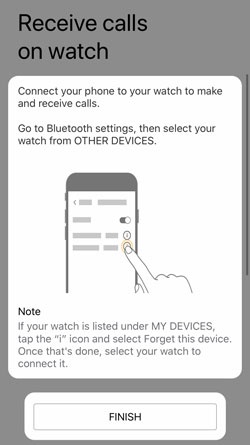
- Review the info then tapFINISH.
- From the 'Connect your watch to your phone' message, tapConfirm.
- From the 'Tap to connect to the mobile network' message on your watch, tapCONNECT.The watch restarts.This process may take up to 2 minutes.
Continue to use in conjunction with a companion smartphone for maximum functionality. To un-pair your companion smartphone and use the Galaxy Watch as a standalone device, reset the watch then set up as a standalone device.
Standalone mode can't be used with Number Share.