Samsung Galaxy A71 5G UW - Common Camera Settings
Here's info on common camera settings (e.g., flash, timer, front / rear camera, etc.) for your Galaxy A71 5G UW.
For additional info on camera settings, refer to the Camera section of the user guide.
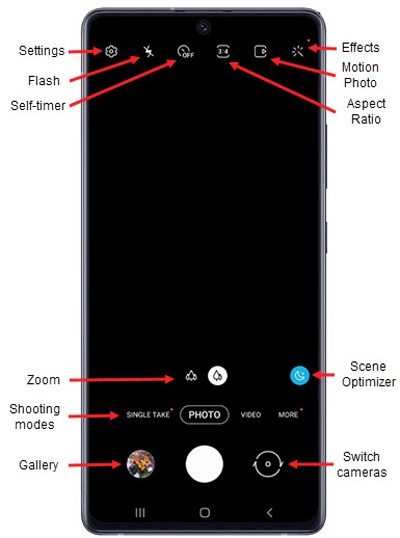
Settings
- From a Home screen, tap theCamera icon
(lower-right).
If unavailable, swipe up or down from the center of the display then tapCamera. - TapSettings
.
- Select an option:
- Scene optimizerTap to turn on
or off
.
- Shot suggestionsTapto turn on or off.
- Scan QR codesTapto turn on or off.
- Use wide angel for group selfiesTap to turn on or off.
- Save selfies as previewedTap to turn on or off.
- High efficiency videoTap to turn on or off.
- Video stabilizationTap to turn on or off.
- Auto HDRTap to turn on or off.
- Grid linesTap to turn on or off.
- Location tagsTap to turn on or off.
- Shutter soundTap to turn on or off.
- Vibration feedbackTap to turn on or off.
- WatermarkTap to turn on or off.
Swipe Shutter button to
- From a Home screen, tap theCamera iconIf unavailable, swipe up or down from the center of the display then tapCamera.
- TapSettings
- TapSwipe Shutter button.
- Select an option:
- Selected when checkmark appears.
- Take burst shot
- Create GIF
Format and advanced options
- From a Home screen, tap theCamera iconIf unavailable, swipe up or down from the center of the display then tapCamera.
- TapSettings
- TapFormat and advanced options.
- Tap theHEIF pictures (Photo) switchto turn on
- Tap theWide shape correctionswitch to turn on or off.
Resolution
- From a Home screen, tap theCamera iconIf unavailable, swipe up or down from the center of the display then tapCamera.
- TapSettings
- Rear video size:
- 16.9 (1920x1080)
- Full (1920x912)
- 1:1 (1072x1072)
- Front video size:
- 16.9 (1920x1080
- FHD (1920x912)
- 1:1 (1072x1072)
Shooting Methods
- From a Home screen, tap theCamera iconIf unavailable, swipe up or down from the center of the display then tapCamera.
- TapSettings
- TapShooting methods.
- TapPress Volume key tothen select an option (e.g., Take picture or record video, Zoom, etc.).
- Tap any of the following options to turn on
- Voice control
- Floating Shutter button
- Show palm
Settings to keep
- From a Home screen, tap theCamera iconIf unavailable, swipe up or down from the center of the display then tapCamera.
- TapSettings
- Tap any of the following options to turn on
- Camera mode
- Selfie angle
- Filters
Storage location
- From a Home screen, tap theCamera iconIf unavailable, swipe up or down from the center of the display then tapCamera.
- TapSettings
- TapStorage location.
- Selection an option:
- Internal storage
- SD card
Flash
- From a Home screen, tap theCamera iconIf unavailable, swipe up or down from the center of the display then tapCamera.
- Tap theFlash icon
.
- Select an option:
- On
- Off
- Auto
Self-timer
- From a Home screen, tap theCamera iconIf unavailable, swipe up or down from the center of the display then tapCamera.
- Tap theSelf-timer icon
.
- Select an option:
- Off
- 2 secs
- 5 secs
- 10 secs
Camera Effects
- From a Home screen, tap theCamera iconIf unavailable, swipe up or down from the center of the display then tapCamera.
- Tap theEffects icon
.
- Swipe left to choose a preset effect (e.g., Warm, Cool, Lolli, etc.).
Motion Picture
- From a Home screen, tap theCamera iconIf unavailable, swipe up or down from the center of the display then tapCamera.
- Tap theMotion Picture icon
to turn on or off.
Highlighted yellow when enabled.
Scene Optimizer
- From a Home screen, tap theCamera iconIf unavailable, swipe up or down from the center of the display then tapCamera.
- Tap theScene optimizer icon
to turn on or off.
Zoom
- From a Home screen, tap theCamera iconIf unavailable, swipe up or down from the center of the display then tapCamera.
- Tap theZoom iconto change between Ultra wide angle
and Wide angle
.
Aspect Ratio
- From a Home screen, tap theCamera iconIf unavailable, swipe up or down from the center of the display then tapCamera.
- Tap theAspect Ratio icon
to automatically adjust your shots for the current scenery.
Shooting Mode
- From a Home screen, tap theCamera iconIf unavailable, swipe up or down from the center of the display then tapCamera.
- To change the camera mode, swipe left or right to select an option:
- PanoramaTap the Camera button then pan slowly in one direction.
- ProManually adjust the ISO sensitivity, exposure value, white balance, and color tone.
- Live focusTap an object less than 20 inches away to focus on it then tap the Camera button to take a picture.
- PhotoCapture a picture.
- VideoCapture video.
- Slow motionCaptures video in slow motion
Switch Cameras
- From a Home screen, tap theCamera iconIf unavailable, swipe up or down from the center of the display then tapCamera.
- Tap theCamera Facing icon
to switch between rear and front-facing camera.