Orbic Journey L - Add a Wi-Fi Network
Here's how to connect your Journey L to a Wi-Fi network.
- From the main screen, selectMenu.Utilize the 5-way navigation pad on your Orbic® Journey™ L to highlight and the center button to select.
- Navigate:Settings
>
Wireless & networks>Wi-Fi. - SelectWi-Fito turn on or off.
- Press theleft soft key
to 'Refresh' the Wi-Fi list.
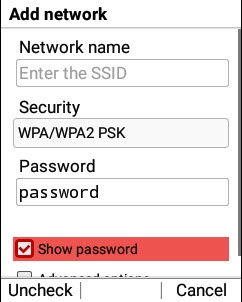
- Search for the desired network.If not found, press theright soft keyleft soft key:
- Network name (SSID)
- Security
- Password
- Press theleft soft keyto choose 'Check' or 'Uncheck'.
- After the password is entered selectSave.
- SelectConnect.