Lenovo Flex 5G - Capture a Screenshot
Here's how to capture and view a screenshot on your Flex 5G laptop.
- From the Home screen, tap or click theStart key(lower-left).
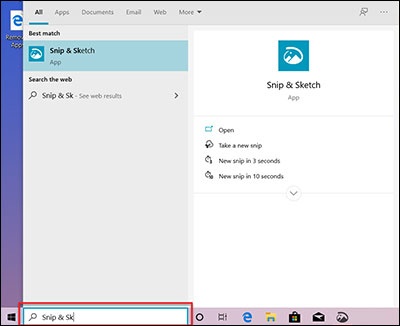
- Tap or clickSnip & Sketch.Alternatively, typeSnip & Sketchin the Search bar to locate.
- Tap or clickNew(upper-right).
- Select the type of snip you want to use:
- Rectangular Clip
- Free-form Clip
- Full-screen Clip
- Tap or click theSave icon(right).
- Locate the preferred Folder to save the screenshot you've taken.
- Tap or click theXin the upper-right corner to close the screenshot.To view the screenshot, navigate from the Start or Apps screen.