Samsung Galaxy S20 5G UW - Common Camera Settings
Here's info on common camera settings (e.g., flash, timer, etc.) for your Galaxy S20 5G UW.
For additional info on camera settings, refer to the 'Camera' section of the user guide.
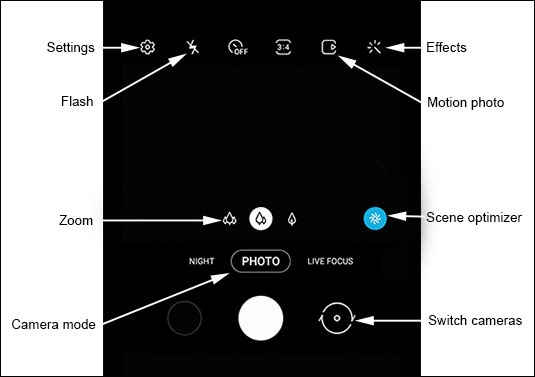
Settings
- From a Home screen, tapCamera
(lower-right).
If unavailable, swipe up or down from the center of the display then tapCamera. - TapSettings.
- Select an option:
- Resolution
- Rear video size:
- 16.9 8K (7680x4320)
- 16.9 (1920x1080)
- Full (2400x1080)
- 1:1 (1440x1440)
- Front video size:
- 16.9 (1920x1080
- FHD (2400x1080)
- 1:1 (1440x1440)
- Shooting Methods
- Tap an option to turn on
or off
:
- Voice control
- Floating Shutter button
- Show palm

Flash
- From a Home screen, tapCameraIf unavailable, swipe up or down from the center of the display then tapCamera.
- Tap theFlash icon.
- Select an option:
- On
- Off
- Auto

Camera Effects
- From a Home screen, tapCameraIf unavailable, swipe up or down from the center of the display then tapCamera.
- Tap theEffects icon
.
- Swipe left to choose a preset effect (e.g., Warm, Cool, Lolli, etc.).
Motion Photo
- From a Home screen, tapCameraIf unavailable, swipe up or down from the center of the display then tapCamera.
- Tap theMotion photo icon
to capture a few seconds of action leading up to when the shutter button is released.
Zoom
- From a Home screen, tapCameraIf unavailable, swipe up or down from the center of the display then tapCamera.
- Tap theZoom iconthen move the slider left or right to zoom in or out.
Scene Optimizer
- From a Home screen, tapCameraIf unavailable, swipe up or down from the center of the display then tapCamera.
- Tap theScene Optimizer iconto automatically adjusts your shots for the current scenery.
Camera Mode
- From a Home screen, tapCameraIf unavailable, swipe up or down from the center of the display then tapCamera.
- To change the camera mode, swipe left or right to select an option:If any of the following modes are unavailable, swipe all the way to the right then tapMORE.
- Single Take: Capture multiple photos and videos with a single press of the shutter button.
- Photo: Capture a picture using your Galaxy S20 5G UW camera.
- Video: Capture a video using your Galaxy S20 5G UW camera.
- Pro: Manually adjust the ISO sensitivity, exposure value, white balance, and color tone.
- Panorama: Tap the Camera button then pan slowly in one direction.
- Food: Optimizes images taken of food.
- Night: Minimizes noise from dark environments to enhance photo's details.
- Live focus: Blur the background so your subject stands out in a picture.
- Live focus video: Blur the background so your subject stands out in a video.
- Pro Video: Manually adjust the ISO sensitivity, Temperature, Tint, etc.
- Super slow-mo: Captures video in super slow motion.
- Slow motion: Captures video in slow motion.
- Hyperlapse: Create time-lapse videos.
Switch Cameras
- From a Home screen, tapCameraIf unavailable, swipe up or down from the center of the display then tapCamera.
- Tap theCamera Facing icon
to switch between rear and front-facing camera.