OnePlus 8 5G UW - Vibrate Mode
Here's how to turn vibrate mode for your OnePlus 8 5G UW on or off.
If you need to enable Vibrate mode on your OnePlus 8 5G UW, a setting that disables all sounds and only allows vibration for received notifications, follow these step-by-step instructions.
- From a Home screen, swipe up to access the apps screen.
- Navigate:.SettingsSounds & Vibration
- TapPhone ringtone.
- Tap theVibrate for calls switchon
.
- TapVibration Pattern & Intensitythen set the following:Selected when a red dot is present.
- Vibration pattern
- Vibration intensity
- Tap theBack icontwice to return to the Sound & vibration settings screen.
- TapDefault notification sound.
- TapVibration intensitythen select an option (e.g., Light, Medium, etc.).


You can also activate 'Vibrate mode' by moving the  appears.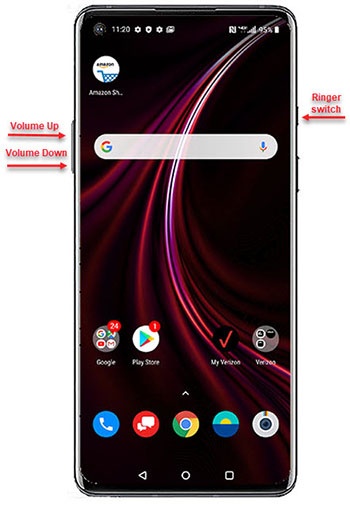
Ringer switch
(right edge) until the vibrate icon appears.