Care Smart app - Use Step Counter
Here's how to use the step counter for your Care Smart watch via the Care Smart app.
- This content is only available for the Care Smart watch.
- Ensure the Care Smart app is updated (Google Play™ Store or Apple® App Store®).
- Check out these Care Smart FAQs for more info.
Turn On Step Counter
- Open theCare Smart app.If presented with the PIN screen, enter your PIN.
- TapDashboard.
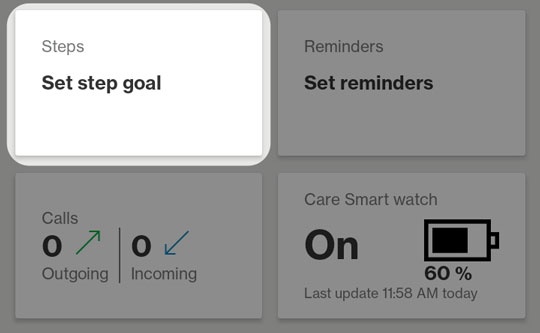
- Tap theSteps card.
- Tap theInactive switchto turn on
.
- Enter the number of steps per day.
- Tap theReceive a daily notificationto turn on
.
Configure time for notification by using the scrolling clock. - Enter a message for reaching the goal.
- TapSave.


Edit a Step Goal
- Open theCare Smart app.If presented with the PIN screen, enter your PIN.
- TapDashboard.
- Tap theSteps card.
- TapEdit.
- Make the desired changes then tapSave.
View Step History
- Open theCare Smart app.If presented with the PIN screen, enter your PIN.
- TapDashboard.
- Tap theSteps card.
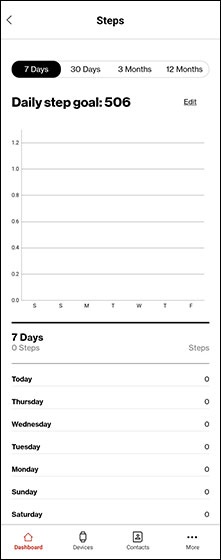
- Review the following info:
- Daily Step Goal
- Track goals for 7 days, 30 days, 3 months, etc.
Turn Off Step Counter
- Open theCare Smart app.If presented with the PIN screen, enter your PIN.
- TapDashboard.
- Tap theSteps card.
- TapEdit.
- Tap theActiveswitchto turn off
- TapUpdate Step Goal.