GizmoWatch 2 - Create and Send a Text Message
Here's how to create and send a text message on your GizmoWatch 2.
- The GizmoWatch™ 2 can only text or call contacts setup through the GizmoHub app by designated caregivers.
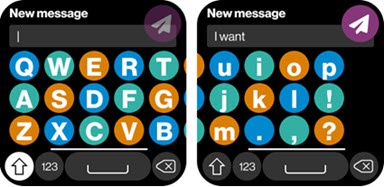
- A QWERTY touchscreen keyboard has been added. Kids can now create their own original text messages on their watches
- In the caregiver's GizmoHub app, each message is displayed in a chat bubble (white for the caregiver and colored bubbles for the Gadget messages) and is timestamped.
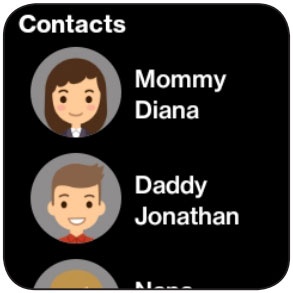
- From the watch face, swipe left to ContactTo add a contact, refer to GizmoHub App - Add a Contact.
- Tap the contact you want to message.
- Tap theMessage icon
.
- Do any of the following:
- To type and send a message using the QWERTY keyboard:
- Tap theabc icon(lower-left).
- Use keyboard to type a message then tap theSend icon
.
Swipe left or right on the keyboard to use hidden keys - Preview message, then tap theSend iconagain to confirm and send.
- Tap theMessaging iconagain to send a pre-written message.Swipe up to select from a list of pre-written messages
- Tap theemoji icon
to send an emoji.
- Double tap theMicrophone icon
to record a voice message.