Stream TV - Enable / Disable App
Here's how to turn pre-installed apps on your 1st-generation Stream TV on or off.
Some apps that come pre-installed (e.g., Google Play™ Store, Google Play Music, etc.) on your 1st-generation Stream TV device can't be uninstalled; however, they can be disabled (turned off) so they don't appear in the list of apps on your device.
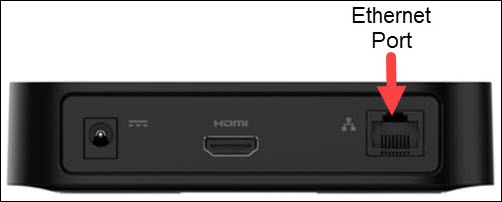
- The steps below apply to the original Stream TV, which can be identified by the Ethernet port on the back of the device. If you have the 2nd-generation Stream TV model, refer to Stream TV - Enable / Disable App.
- Ensure your Stream TV is up to date as the following steps apply to the most recent version.
- The option to enable or disable an app may only be available for apps that can't be uninstalled.
Enable App
- If necessary, press theHome button
on your Stream TV remote to wake up your device.
- From the Stream TV Home screen, select theSettings menu
(upper-right).
Utilize 5-way navigation pad on the remote to highlight and the center (OK) button to select. - Navigate: .
- SelectSee all apps.
- Select the appropriate app from the 'Disabled apps' section (at the bottom).
- SelectEnable.
- Review the notification then selectOKto confirm.
For additional info, see this Stream TV support page.
Disable App
Disabling an app may cause related apps to function improperly.
- If necessary, press theHome button
- From the Stream TV Home screen, select theSettings menuUtilize 5-way navigation pad on the remote to highlight and the center (OK) button to select.
- Navigate: .
- SelectSee all apps.
- Select the appropriate app.
- SelectDisable.If the Disable option isn't available, navigate: .
- Review the notification then selectOKto confirm.
- If prompted to 'replace this app with the factory version', selectOKto confirm.
For additional info, see this Stream TV support page.