Stream TV - Add a Wi-Fi Network
Here's how to connect your 1st-generation Stream TV to a Wi-Fi network.
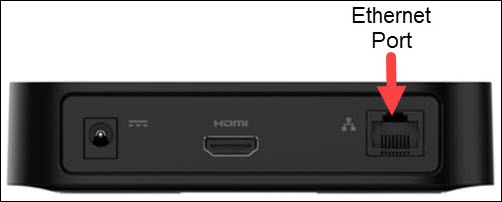
- The steps below apply to the original Stream TV, which can be identified by the Ethernet port on the back of the device. If you have the 2nd-generation Stream TV model, refer to Stream TV - Add a Wi-Fi Network.
- Ensure your Stream TV is up to date as the following steps apply to the most recent version.
Connect to an Available Wi-Fi Network
Wi-Fi network info is required to complete several steps. Refer to the network admin for assistance.
- If necessary, press theHome button
on your Stream TV remote to wake up your device.
- From the Stream TV Home screen, select theSettings menu
(upper-right).
Utilize 5-way navigation pad on the remote to highlight and the center (OK) button to select. - SelectAndroid TV settingsthen selectNetwork & Internet.
- From the 'Available networks' section, select the preferred Wi-Fi network.If the preferred network is not listed, it can be added manually.
- If presented, enter the appropriate password then select theEnter icon
(lower-right).
For additional info on Stream TV, check out the Stream TV support page.
Manually Connect to a Wi-Fi Network
Wi-Fi network info is required to complete several steps. Refer to the network admin for assistance.
- If necessary, press theHome button
- From the Stream TV Home screen, select theSettings menuUtilize 5-way navigation pad on the remote to highlight and the center (OK) button to select.
- SelectAndroid TV settingsthen selectNetwork & Internet.
- SelectAdd new network(Other options section).
- Enter the appropriate Wi-Fi network name then select theEnter icon
- From the 'Type of security' screen, select the appropriate security option:
- None
- WEP
- WPA / WPA2 PSK
- From the Password field, enter the appropriate password then select theEnter icon.To hide the password as it is being entered, select (check)Hide password.
For additional info on Stream TV, check out the Stream TV support page.