Manage Disney+ Subscription - My Verizon Website
Here's how to change your Disney+ plan or cancel your subscription via the My Verizon website.
If the Disney+ bundle is removed on or after December 8, 2022, it can't be readded unless included with select Verizon Unlimited plan. Refer to the Disney+ FAQs for more info.
Change Subscription
- From a web browser, sign in to My Verizon.Only the Account Owner or Manager can perform these steps; here's additional info on account roles.
- From the My Verizon Home screen, navigate: .If accessing from a mobile browser, select theMenu icon
(upper-right) then navigate: .
- Select Services & perks overview.
- From the 'Manage Services & Perks' section, select theMore icon
in the 'Disney+' section.
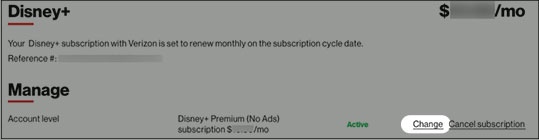
If necessary, selectSee Allfrom the 'Manage Services & Perks' section then from the 'Disney+' section, selectManage. - From the 'Manage' section, selectChange.
- Select the preferred Disney+ plan then tapContinue.Selected when a dot is present.
- Disney+ Basic (With Ads)
- Disney+ Premium (No Ads)
- To continue, review and accept the Disney+ Terms and Conditions then selectConfirm.
Cancel Subscription
- From a web browser, sign in to My Verizon.Only the Account Owner or Manager can perform these steps; here's additional info on account roles.
- From the My Verizon Home screen, navigate: .If accessing from a mobile browser, select theMenu icon
- Select Services & perks overview.
- From the 'Manage Services & Perks' section, select theMore iconIf necessary, selectSee Allfrom the 'Manage Services & Perks' section then from the 'Disney+' section, selectManage.
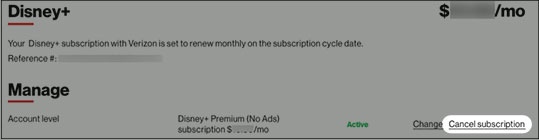
- From the 'Manage' section, selectCancel subscription.
- SelectRemovethen selectContinue.
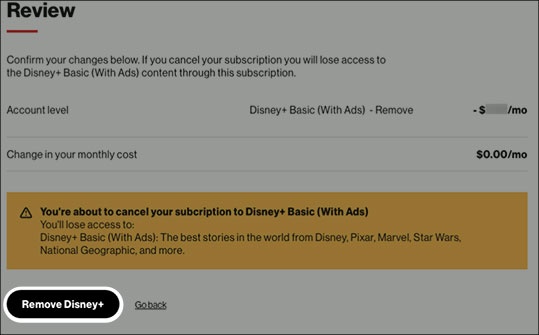
- To proceed, review the message then selectRemove Disney+.It may take up to 24 hours for these changes to take effect.