5G Home Router - Manage Parental Controls / Time Blocks
Here's how to view or change parental controls or time blocks for the 5G Home Router.
- This content is for 5G Home Internet. Here's info on Fios Home Internet.
- 5G Home Internet service is currently offered in specific areas. Here's how to check for 5G coverage availability.
You can also set up parental controls or time blocks via the My Verizon app.
Parental Controls
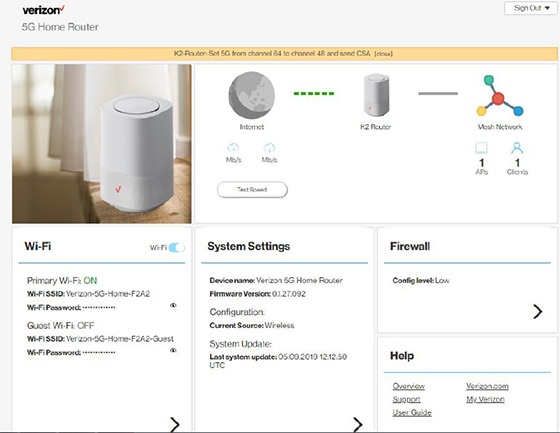
- Sign in to the Admin WebGUI.
- From the Router Home screen, clickParental Controls.Click theFilters switchto turn on
or off
.
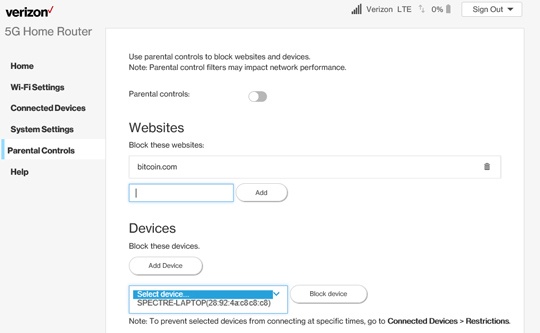
- From Parental Controls, click theParental controls switchto turn on
- From Websites, clickAdd Website, enter the appropriate website to block then clickAdd.To remove blocked websites, click theDelete icon
.
- From Devices, clickAdd device.
- Click the 'Connected devices' dropdown icon
then select the appropriate device to block.
- ClickBlock device.To remove blocked devices, click theDelete icon.
Time Blocks
- Sign in to the Admin WebGUI.
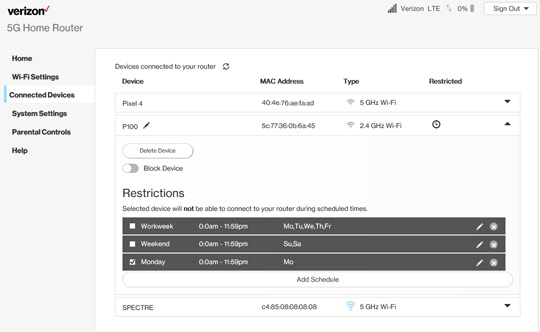
- From the Router Home screen, clickConnected Devices.From the Connected Devices column, view the Restrictions column to see any active time blocks.
- From Connected Devices, click theDropdown icon
- From the Restrictions section, clickAdd Schedule.To modify an existing schedule, click theDropdown iconthen clickAdd Schedule.
- From the Restrictions section, enter the appropriate values (e.g., Schedule Name, Time Restrictions, etc.) then clickSave.