Digital Secure App - Perform a Antivirus Scan (Android)
Here's how to perform a manual scan via the Digital Secure app on your Android device.
A manual scan may be done on your Android™ device at any time through the Dashboard or Services screens within the app.
Frequent scans when using the Digital Secure app may decrease battery life and increase data usage.
- Open the Digital Secure app.
- From the Dashboard tab, scroll down to ‘Scan files for viruses’ then tapScan.Alternatively, from the Services tab, scroll down then tapAntivirus Scan.
- TapScan now.
- If prompted, tap any of the following to configure or tap theSettings icon
from the Antivirus Scan screen:
- Storage permission
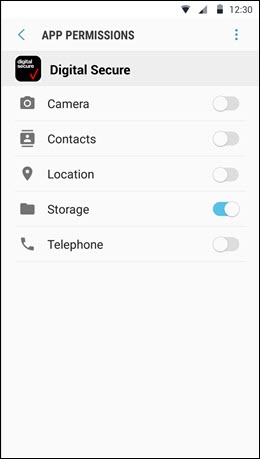
- To allow or deny storage, tapSet up permissionsand then tap Allow or Deny.
- From the ‘App permissions’ screen, tap theStorage switchto turn on.
- Trust list
- View trusted apps and files listed with an option to remove by tappingRemove.
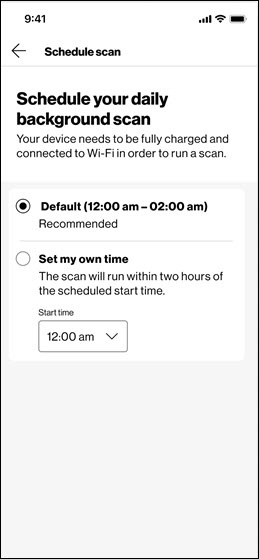
- Schedule scan
- Select one option by tapping either Default (recommended) or Set my own time.
- Scan only new files
- Enable scanning of files that were added or modified after your last scan, tap to turn on
.